Tasks & recurring follow-ups
Track work with or without a person on Plan's List view, add company context, repeat follow-ups on a cadence, and turn note dates into calendar items.
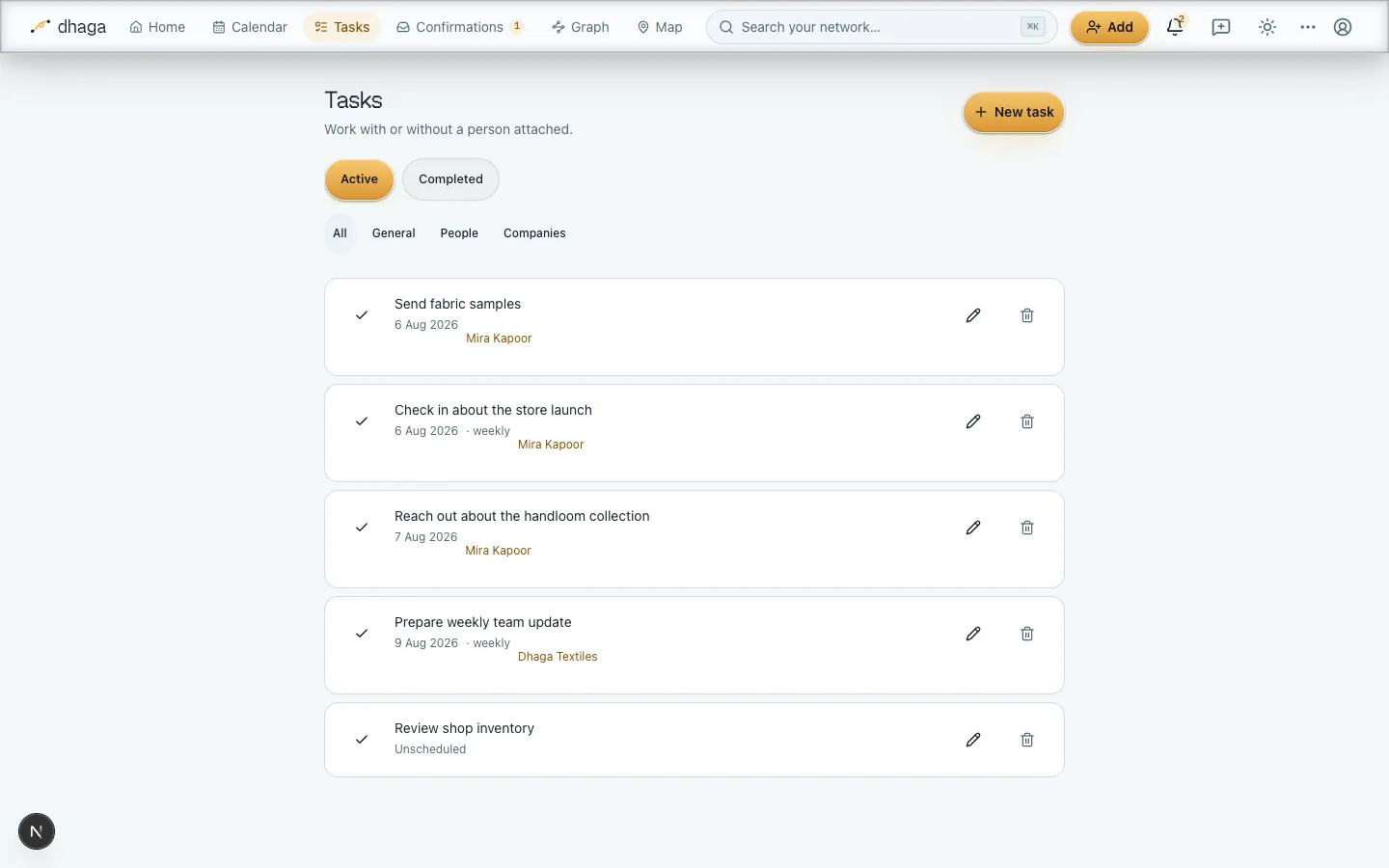
Open Plan at /app/plan and pick the List view for work that may not
belong to a person. It's where the old /app/tasks board went, and that
address still redirects here. A task needs only a title; its due date, person,
and company are optional. Use Active and Completed to work the list, edit
details, or mark it done. A dated task also appears on the Day, Week and Month
views of the same page; an undated one stays in the list instead of receiving a
made-up date — and you can give it one without leaving the row, from the date
button that reads Unscheduled.
Find one in a long list
Search the list by task text, by the person attached, or by the company — typing "Acme" finds a task whose wording never mentions Acme but whose company does. Narrow further with the All / General / People / Companies chips: General is the work that names nobody, your own admin list.
Beside them, pick a person or a company to see only what you owe that one. Each list offers only people or companies that already have a task on this board, so the filter can never come back empty, and it doesn't appear at all until one of your tasks names someone. Sort by Due date — the default, soonest first with undated work last — or by Date added, newest or oldest first, for when the question is "what did I just add?" rather than "what's next?". Every row shows the day it was added beside its due date.
The list pages rather than scrolling forever — 10 rows at a time, raised at the bottom. Changing a search, a filter or the sort always returns you to the first page, so a narrowed list can never strand you on an empty one. All of these controls are shared with the calendar views: set them once and switching view keeps them.
Repeat work without duplicating it
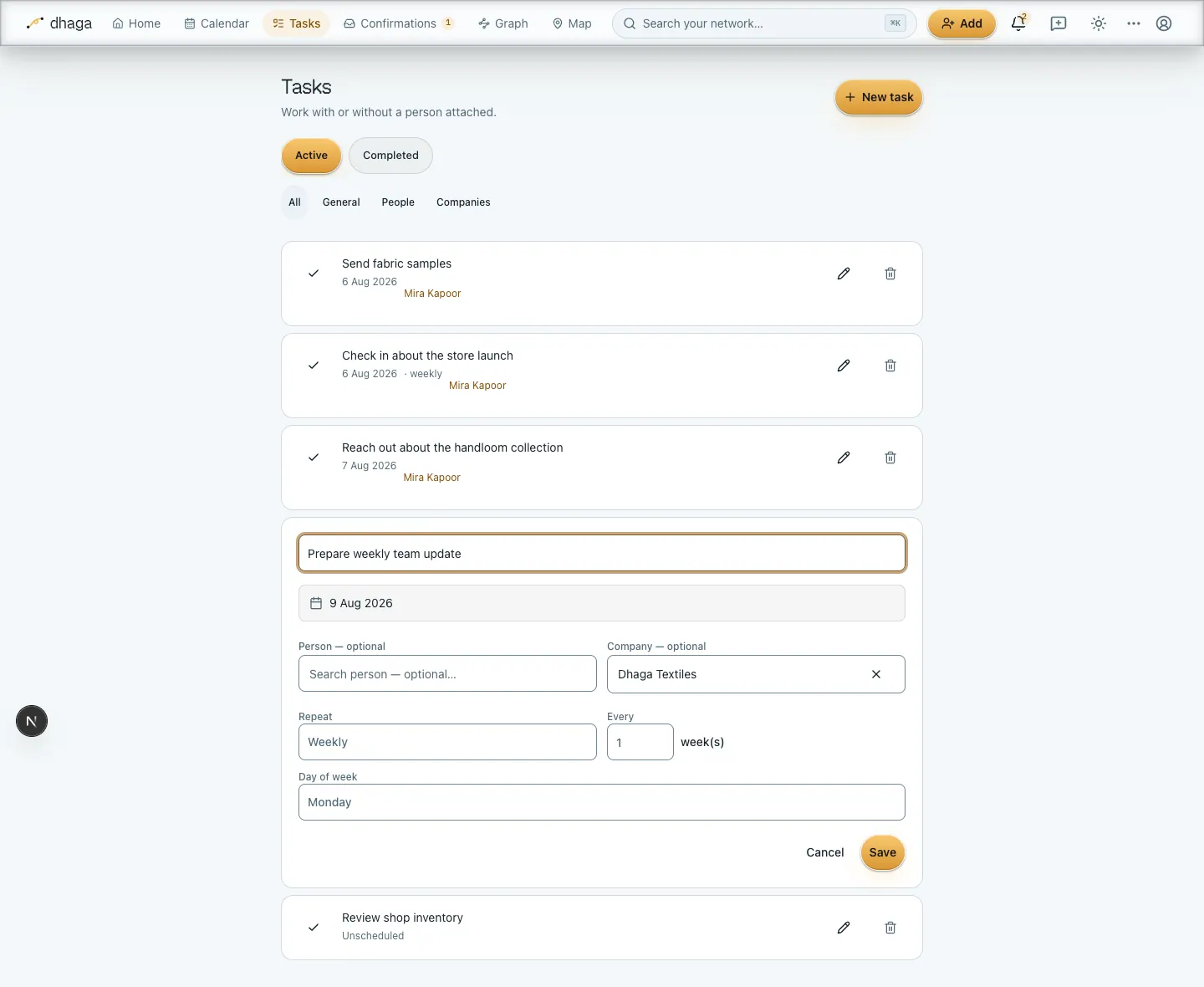
Tasks and person follow-ups can repeat daily, weekly, monthly, or yearly. Choose the interval and, where relevant, the weekday, day of month, or month and day. Completing the current occurrence advances the same item exactly once; dismissing it ends the series. Short months clamp to their final day.
Dates mentioned in notes
When a note says “reach out by Saturday”, “next Monday”, or “10 days from now”, Dhaga resolves it with calendar code rather than asking an LLM to do date arithmetic. “Next weekend” schedules Saturday immediately, then adds a Confirmation where you can keep Saturday or move it to Sunday.
A reminder before it's due
Give a task or a follow-up a time of day and Dhaga sends you a short nudge about ten minutes before it. A dated task with no time on it is a whole day rather than a moment, so it doesn't get one — it's covered by your daily brief instead, which is the right shape for "here's today".
You can also ask for one directly in your linked chat — "remind me in 16 minutes" — and postpone one you've just been sent by replying 10 min, 30 min, 1 hour or tomorrow. Snoozing moves the reminder, never the due date on this board. The whole of it, including which plans get reminders in chat rather than by email, is in Reminders & the daily brief.
Keep-in-touch schedules
- Weekly and fortnightly: optional weekday.
- Monthly and quarterly: optional day of month.
- Twice yearly and yearly: optional month and day.
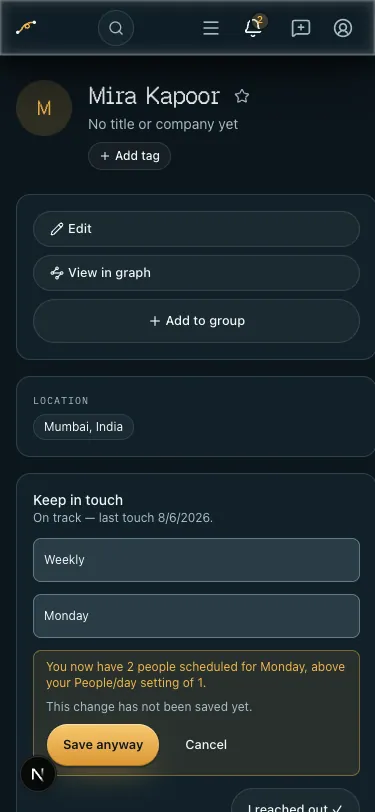
Choose Auto for a weekly cadence and Dhaga spreads people across the week using People/day, then saves the assigned weekday. An explicit crowded day shows a warning before anything is saved; choose Save anyway to keep that weekday, or cancel to restore the previous schedule. Due dates follow your Settings time zone; older elapsed-day-only contacts continue to work unchanged.
One page, two kinds of work
Person follow-ups and general tasks share the same board, the same filters and the same completion rules. Linking context is optional; Dhaga never invents a placeholder person.
When a link goes nowhere
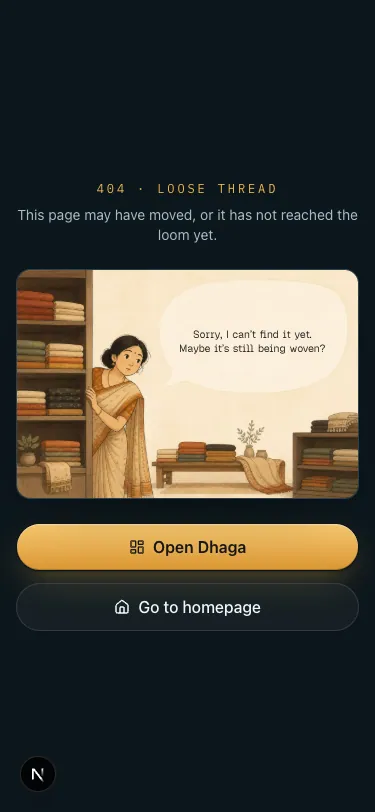
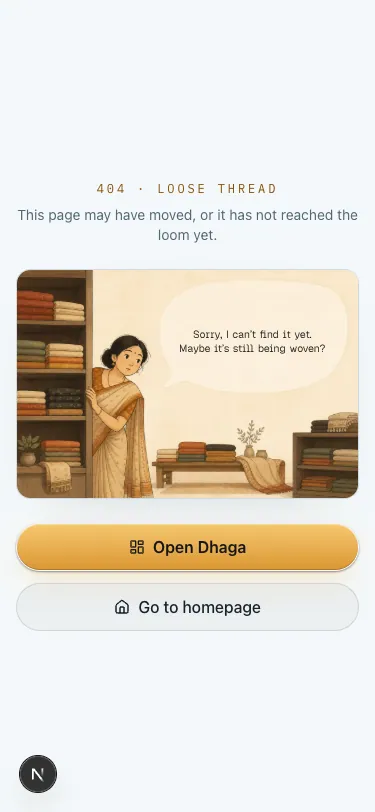
If a saved link points to a page that moved or has not been built yet, Dhaga shows the cloth-shop search scene instead of a generic error. From there you can open the app or return to the homepage. The same recovery actions work inside the signed-in app and on public pages, in light and dark themes.
Coming from Obsidian
Move from Obsidian to Pages: where each core feature and popular plugin lives, the keys that changed, what works differently, what Pages leaves out, and how to import a vault.
Plan — calendar & reminders
Everything you owe and everything booked on one page — Day, Week, Month and List views over follow-ups, Dhaga events and your connected calendars.