Search & Ask Dhaga
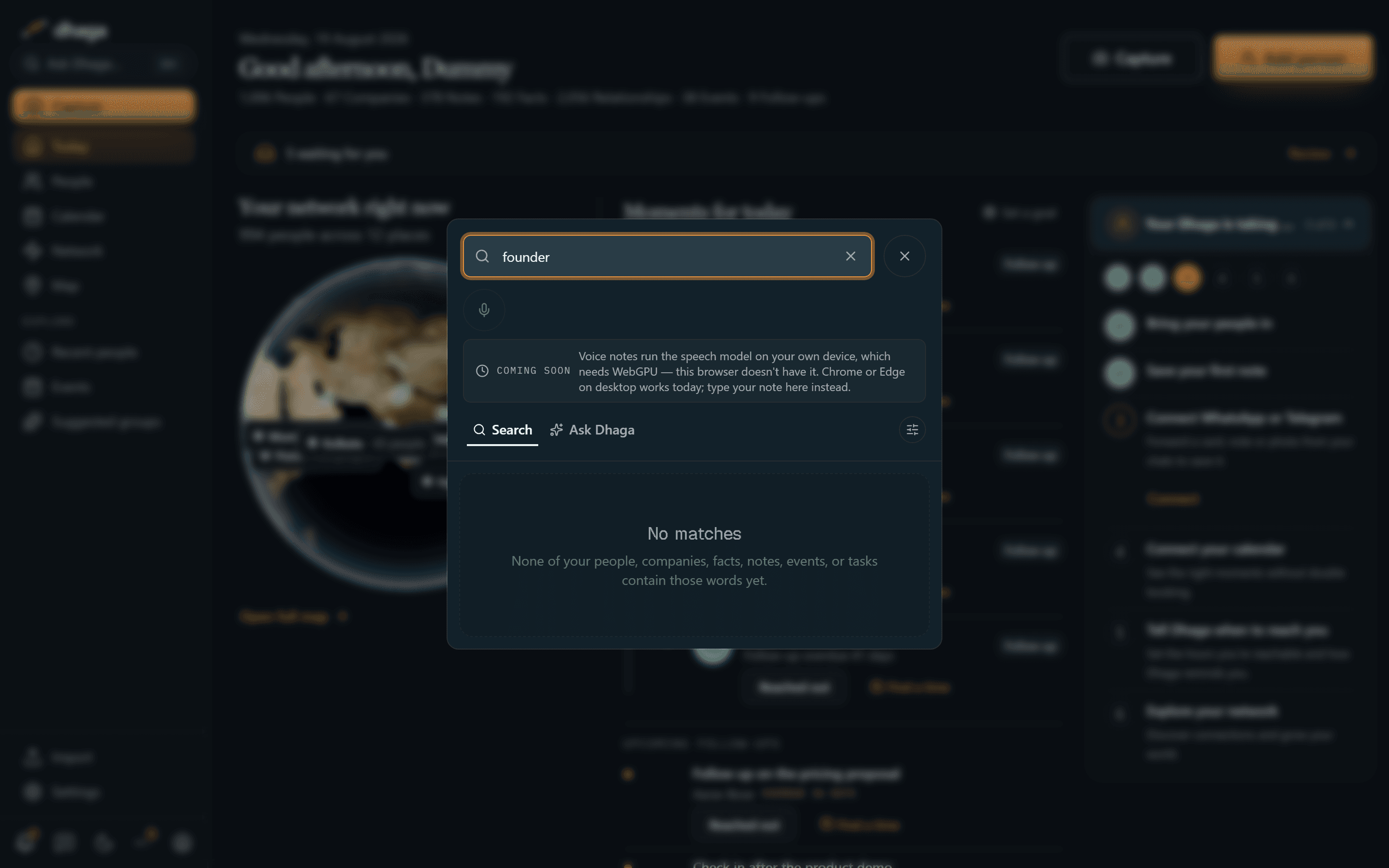
The ⌘K command palette has two tabs — Search to filter by name, fact, or note, and Ask Dhaga to get a reasoned, receipted answer over your own graph.
Press ⌘K (Ctrl+K on Windows/Linux) anywhere in the app to open the command palette. It has two tabs for the two ways you'll look things up.
Search
The Search tab filters your whole graph. Type a query and it matches across every source a person can be described by, with tunable weights so you can lean the ranking toward one of them:
- Who they are — name, nickname, title, location, tags, and their company's name, sector and domain, plus email/phone/link fragments
- What you wrote — notes, extracted facts, open follow-ups, and signals
- Where they've been — every job and education entry, not just their current role, and the events you met them at
- Who they're connected to — a person also surfaces when the node at the other end of one of their relationships matches, or when a note written on a linked entity does. The receipt names the relationship, so you can see the answer came through the graph rather than off their own record.
Ask Dhaga
The Ask Dhaga tab takes a natural-language question and answers it by reasoning over your own graph — "get a reasoned answer with receipts."
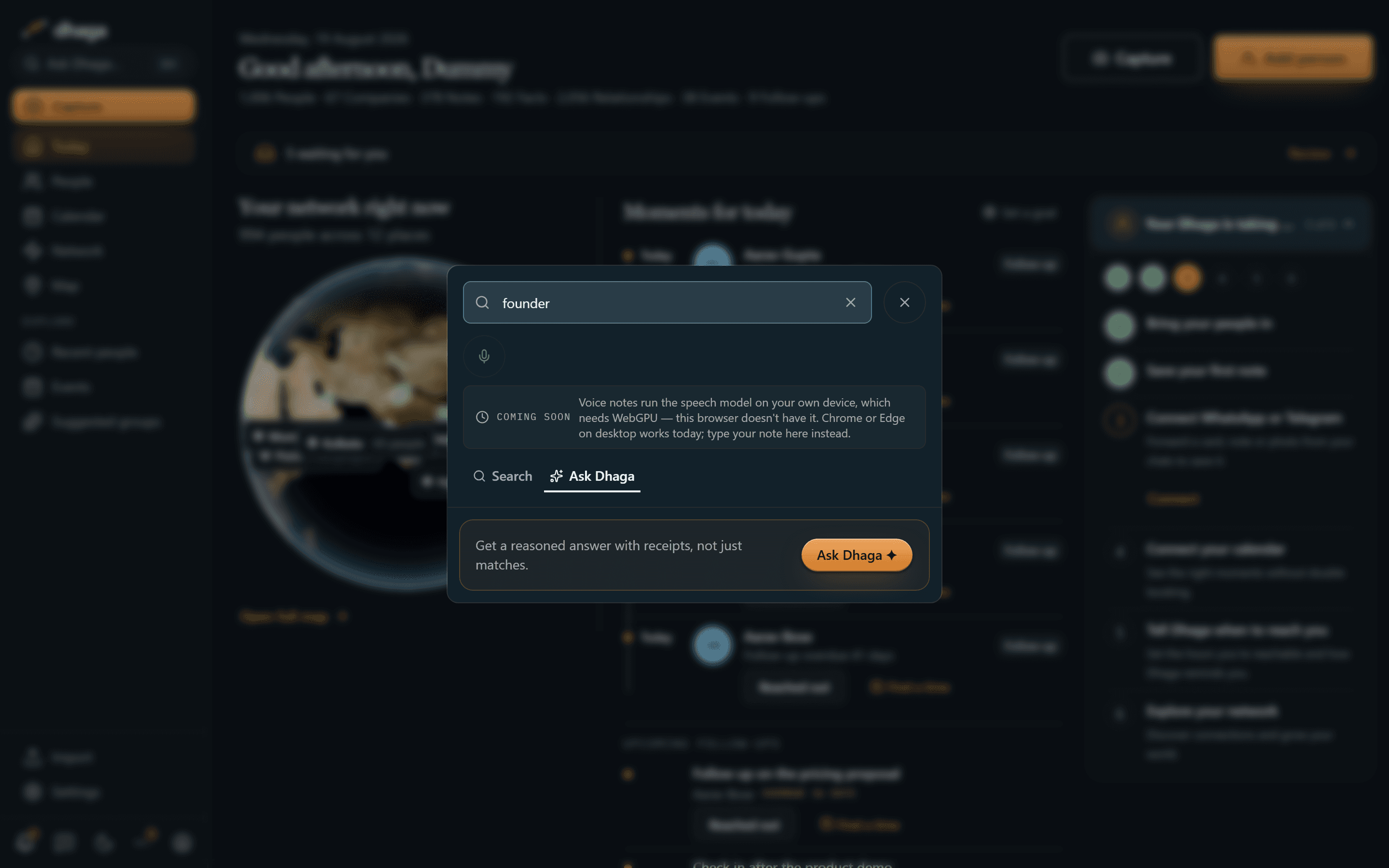
It reads the same sources the Search tab does. Because a question rarely uses the words your own records use, Dhaga first works out what you're asking — filters (a company, an event, tags) plus a handful of alternative terms your notes might use instead ("investor" also looks for vc, venture capital, angel, funding). Those only ever widen the search: they add candidates and never rule any out, so a bad guess costs you nothing.
One difference from the Search tab: your question is finished when you send it, so Ask Dhaga matches whole words. The Search tab matches as you type, where three letters should also find the longer words that start with them — helpful mid-name, misleading in a question, since an acronym like MIT would otherwise count every surname that merely begins with those letters as a match, and a name outranks a note.
Two things make the answers trustworthy:
- Receipts. Every answer points back to the notes and people it drew on, so you can verify it rather than take it on faith. On a wide screen they sit in a side rail next to the answer; on a phone they stack beneath it.
- No fabrication. If the answer isn't in your notes or graph, Dhaga says so — it will not invent a plausible-sounding answer.
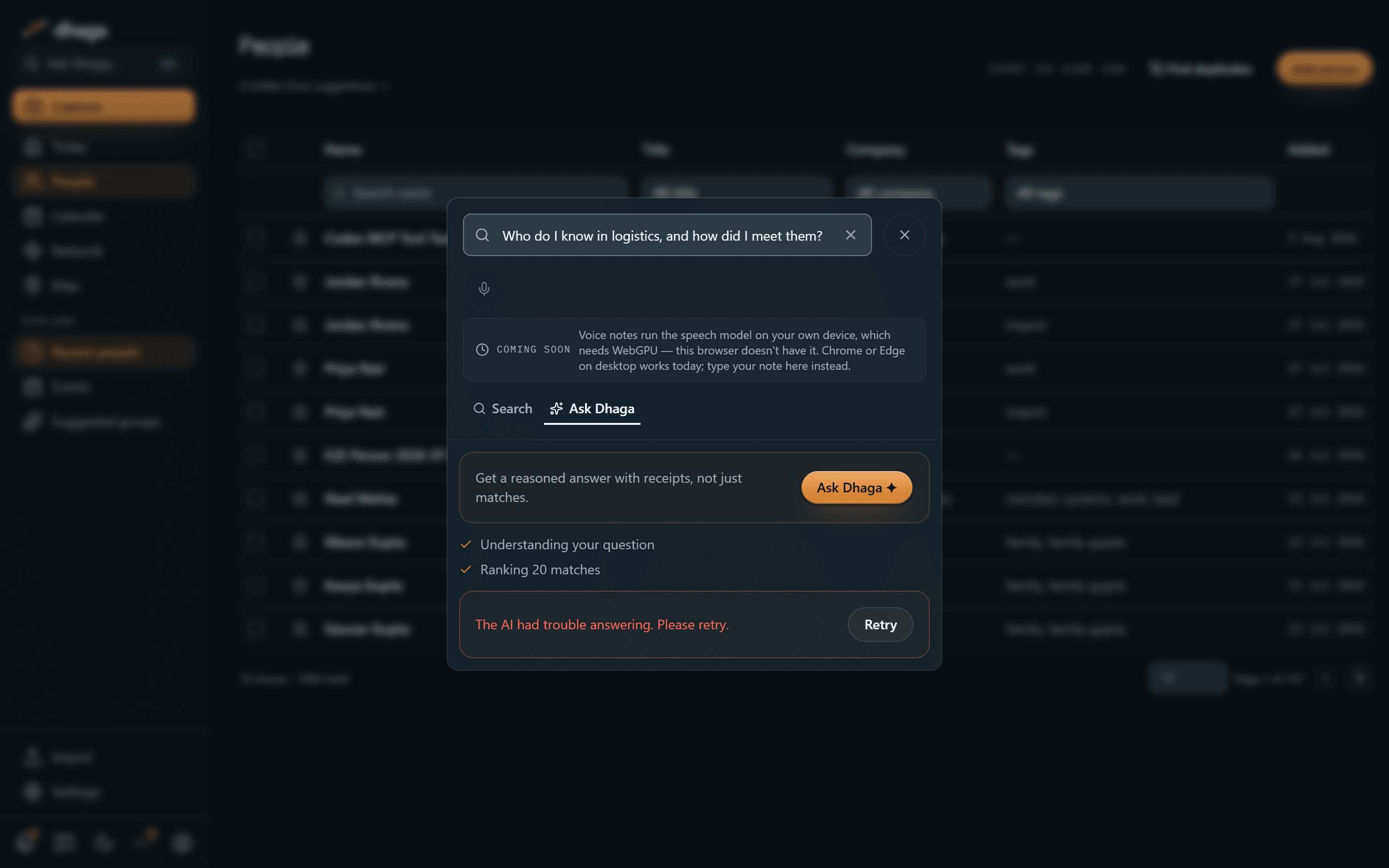
Ask Dhaga uses the LLM
Answering questions runs through Claude. On a self-hosted enterprise deployment this needs an AI provider configured — Claude, or one of your own — which your administrator sets up; Search itself works without it.
Exploring the graph and map
Explore warm paths and relationship edges on the graph, then open the real city map to pan, zoom, and see who is connected to each place.
Connect an AI assistant (MCP)
Connect Claude, ChatGPT, Cursor or any MCP client to read your Dhaga network and write back to it — twenty-four tools, and no AI credits for the reading half.