Settings
Tune your Dhaga profile, appearance, billing, security, calendar, suggestions, capture preferences, and API keys.
/app/settings is where you tune how Dhaga behaves and connect it to the
rest of your tools.
Your current plan is always one click away without coming here: the account menu in the top-right names it — Free plan, Pro plan, Power plan, Team seat — and that row links straight to Billing. Self-hosted enterprise deployments show nothing there, because nothing is for sale on them and you already have everything.
What you can configure
Settings is grouped by topic. On a phone, choose a section from the selector; on a larger screen, pick a tab along the top.
- Account — your Profile (edit your display name; your sign-in email is shown read-only and can't be changed here), Appearance (the app's colour theme and font — see below), Security (two-factor authentication, 2FA), and API keys — personal access tokens for the API and the browser extension, and for scripted exports. On a hosted instance creating a token is part of Pro and Power: a token is what signs the browser extension, the mobile app and MCP clients in as you, so adding another device is a paid step. Tokens you already hold keep working and stay revocable if your plan lapses — a downgrade never silently breaks an integration you've already set up. Self-hosted enterprise deployments have no plans, so nothing is gated.
- Plan & billing — what you are on, how it renews, and the available plan changes. On a hosted instance the section also shows a one-line AI credits summary — "3 of 10 AI credits used". Free accounts have a monthly allowance like any other: 10 credits a month. The line only reads "No monthly AI credits on this plan — upgrade to enable AI actions" if whoever runs the instance has explicitly set your allowance to 0, which isn't the normal free-tier state. The full picture lives in its own tab, next door. When a paid plan ends — a subscription stops renewing, or a plan someone granted you reaches its expiry — you're told in the app as well as by email: a banner across the top of Dhaga names the tier that ended and the date, and Billing itself says the same thing rather than still showing a renewal date that has already passed. Nothing is deleted. Every contact, note and connection stays exactly where it is, export keeps working, and the account simply moves back to Free. Dismiss the banner and it stays dismissed — but it will come back if a later plan ends too. If the plan was granted to you rather than bought, the banner also points you at whoever runs the instance, since they can extend it. Following the banner into Billing offers you the plans to buy again, not a "switch plan" control for a subscription that has stopped — opening the page re-checks the payment processor first, so the page you land on reflects what it actually holds. One case gets neither: a subscription the processor still holds open but is no longer collecting on — a card that keeps failing. Until that charge is settled or the subscription closes, the processor refuses both a plan change and a new plan, so Billing says so in place of the cards rather than offering buttons that can only fail.
- Credits — your AI-credit ledger: how many are left this month and when they reset, a breakdown of where the rest went by kind of action, and a list of your most recent AI actions. Credits are charged per action, not per model call: a card scan, note, quick-add or draft costs 1; a question to Ask Dhaga or a pre-meeting brief costs 2; enriching a contact from the web costs 20. The nightly passes — watchlist scans, contact checks and goal matches — are free; they show in the breakdown marked Free rather than being hidden. Credits aren't the only gate: enrichment and pre-meeting briefs are Pro-and-up features whatever your balance says. Your allowance can be raised by whoever runs the instance — a promotional month, or credits granted to you after something went wrong on their side — and extra credits are only ever added on top: what you spent is a record and is never rewritten. Full walkthrough: AI credits. Operators: those controls are the admin AI credits screen, documented in Self-hosting.
- Capture — Card photos (whether the original card image is kept after a scan) and Voice teaching — a vocabulary manager where you teach Dhaga names it keeps mishearing. The fastest way to teach a word is tap-to-fix right in the dictation transcript; anything you correct there shows up here.
- Calendar — connect Google or Outlook so Dhaga can work against your schedule. You don't need one to have a calendar: Plan carries Dhaga's own event store for every account. Connect asks one question before it sends you to Google or Outlook: may Dhaga see what's on your calendar, or only whether you're free or busy? Busy-times-only is exactly that — no titles, no guests — and writes nothing. The wider answer also shows events on Plan and writes your follow-ups to a separate calendar called Dhaga (never your main one); it is per account, and the write-out has its own off switch. Connect the same account again to change your answer. A full-access Google connection then lists the calendars inside that account, each with a show/hide checkbox and a colour you can override; Reminders are written to lets you send follow-ups to one of them instead of the Dhaga calendar, which asks Google for one further permission the first time. Outlook can't list its calendars, so it reads the primary one and its follow-ups stay in the Dhaga calendar.
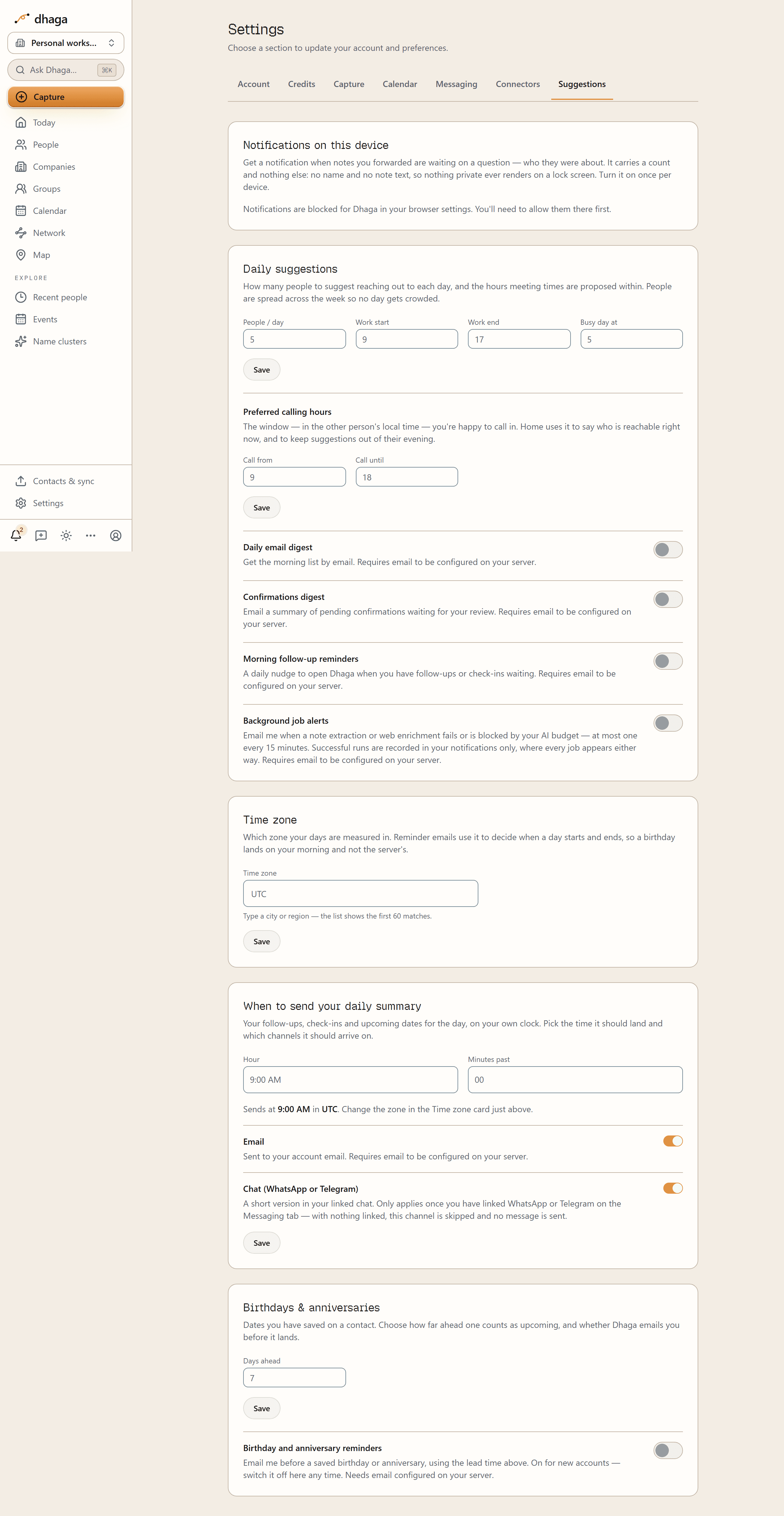
- Suggestions — the daily reach-out suggestions that feed Moments for today on Home, the sections of the one daily email, and your preferred calling hours. Calling hours are a local-time window, used only to label which mapped cities are in a good time to call; they do not send anything or alter a contact. The people-per-day number is a ceiling, not a quota: on a day your calendar is already full of meetings Dhaga shows fewer, and it never drops below one person — a busy day is the day you most need the reminder. It is also the capacity used by Keep-in-touch Auto weekday assignment. Choosing a crowded day explicitly warns before anything is written; Save anyway preserves that choice, while Cancel restores the previous schedule. The first-run setup card can save the initial calling window directly; it is stored in the same Suggestions preference and can be changed here later. Also here: the switches for your daily brief — see One email a day below — covering follow-ups and check-ins waiting (Morning follow-up reminders), the AI Confirmations digest, and Birthdays & anniversaries, which also sets how many days ahead a saved date counts as upcoming (0–90, default 7). Background job alerts sits alongside them but is not part of the brief: an opt-in email for when a note extraction or web enrichment fails or is blocked by your AI budget, at most one every 15 minutes. Runs that succeed are not emailed — every job, successful or not, is recorded in your notifications, and a run that worked asks nothing of you. It also holds your Time zone — see below — and, directly under it, When to send your daily summary: the hour the brief lands and whether it comes by email, in your linked chat, or both. Below that, When to nudge you before something starts sets how far ahead the short pre-meeting nudge arrives.
Some sections depend on configuration
Billing only appears when the instance has a payment processor configured — Stripe, Razorpay, or both — and calendar/ email features need their providers wired up. On a self-hosted enterprise deployment several of these sections are intentionally absent — see Self-hosting.
Your plan and billing
Plan & billing shows what you're on, how you're billed and when it renews. It's there whatever plan you're on, not just while you're on Free.
If you're on a Team seat
Team is enterprise-on-request, not a checkout. There is no self-serve way to buy, resize or cancel one: a Dhaga admin provisions the organization and its seats, and the pricing page's Team card is a Contact sales link for that reason. Talk to us and we'll set it up.
A seat gives you everything Power has — including proactive chat, the one capability that separates Power from Pro — plus an organization workspace, single sign-on, and 1,000 AI credits a month per person, never pooled. If you also pay for Dhaga yourself, your own plan always wins: a seat can raise what you get, never lower it.
So Billing shows you no plan cards. In their place it says your plan comes with your team seat and names your organization's owner as the person who manages it. Two consequences worth knowing: switching workspaces changes your allowance, not what you've already spent this month — and your organization cannot see your AI usage.
Changing your plan
Pick another tier or switch between monthly and yearly from the same cards. The "buy" buttons disappear once you have a plan, so you can never end up with two subscriptions billing the same card. Before you press anything, a line directly under each button says what will happen and when — read it, because how a change is made depends on how you pay.
If you pay in dollars (Stripe)
- Moving up (Pro → Power, or monthly → yearly) takes effect straight away, and you're charged the difference for the rest of the current period. The line under the button reads "Takes effect now, prorated" before you press it.
- Moving down (Power → Pro, or yearly → monthly) starts at your next renewal. You keep what you've already paid for until then, and that same line names the date it starts.
- A scheduled change shows as "Power yearly until 3 Mar, then Pro monthly", and Undo scheduled change cancels it any time before that date.
If you pay in rupees (Razorpay)
An Indian payment mandate can't be pointed at a different plan once your bank or UPI app has approved it. That's a rule of the payment rails, not something Dhaga can work around — so changing plan here means approving a new mandate, much like your first purchase:
- You press the button and the Razorpay window opens.
- You approve a new mandate for the plan you're moving to. Approving it takes a small refundable amount from your account — the exact figure is named in the line directly under the button, before you press it. It registers the mandate and is refundable; it is not a payment for the plan, and the plan's own price is the one on the card above the button.
- Your new plan starts on the renewal date you already had, and that is when its first real charge happens. You're never billed twice for the same day, and your old plan is set to end on that same date. Because your old plan is ending, Billing shows the new one starting rather than an "access ends" line — nothing is going away.
Which means:
- Moving up (Pro → Power) takes effect at your next renewal, like any other change: the card reads "Power starts at your next renewal, 3 Mar." You keep the plan you have paid for until then, and nothing is granted early.
- Moving down, or switching between monthly and yearly at the same tier, changes nothing until that date. You keep exactly what you paid for until it runs out — there is nothing to hand you early.
- If you close the Razorpay window without approving, nothing happens and nothing is debited. The card says "A change to Power monthly is waiting for your approval. Nothing has changed yet" and offers you both a way to finish approving it and a way to drop it.
Tier wins over billing period
If you change both at once, the tier decides which way it's going. Power yearly → Pro monthly is a move down and waits for your renewal, even though monthly bills sooner. Pro yearly → Power monthly is a move up.
In rupees, approving a change can't be undone
Approving the new mandate is what ends the old one, and Razorpay cannot bring a cancelled mandate back. So the drop-it option is only there before you approve; afterwards there is no undo — and no second change either. Until the change you approved actually takes effect, Billing replaces the plan cards with a line saying which change is coming and when: a third mandate stacked on two future ones would leave two cancellations booked against one card, so it isn't offered. From the day it takes effect, changing plan works normally again.
Cancelling your plan outright still works throughout, and it cancels the pending change with it; the dialog says so before you confirm. Cancelling also cancels the change you approved, so the move never happens. You keep the plan you are actually paying for until its renewal date. The dialog says this too.
If you hold a founding Pro seat from the offer that was withdrawn in August 2026, it isn't a rung on this ladder: it's a first-purchase price, so it's never offered to an existing subscriber, and the standard price at your own tier and billing period is never shown as a change, so you can't be moved off it by accident. Everything else still works: a higher tier is offered as a move up, and monthly as a move down at renewal. If you do take one of those, you give the founding price up permanently — the new plan bills at its standard price and nothing puts you back, since it is no longer sold to anyone. Billing spells that out above the button, before you press it.
There is no intro price: the standing prices are the only prices.
Cancelling
Cancel plan ends your subscription at the renewal date — never mid-period. Nothing is charged again and nothing is refunded, because nothing extra was charged. You keep everything you've paid for until that date, then the account drops to Free. The one thing that does not last until that date is a tier you were given free by an upgrade you approved but haven't been charged for yet — see the warning above.
If you pay through Stripe you can change your mind with Keep my plan right up to that date. Razorpay can't un-cancel a subscription, so the confirmation says so and restarting there means starting a new one.
If a renewal payment has failed, the button reads Close subscription instead. Your account is already on Free at that point, and the plan cards are replaced by an explanation — but the payment processor is still holding the subscription open and still re-presenting the charge, so this is how you stop those attempts. It takes nothing further away and nothing is refunded.
Appearance
Account → Appearance — or the direct link /app/settings#appearance —
changes how the Dhaga app looks: a colour palette and a font, both yours
alone. It's also where the first-run walkthrough opens — the tour begins on
this page, and you can click a palette while it is still on screen.
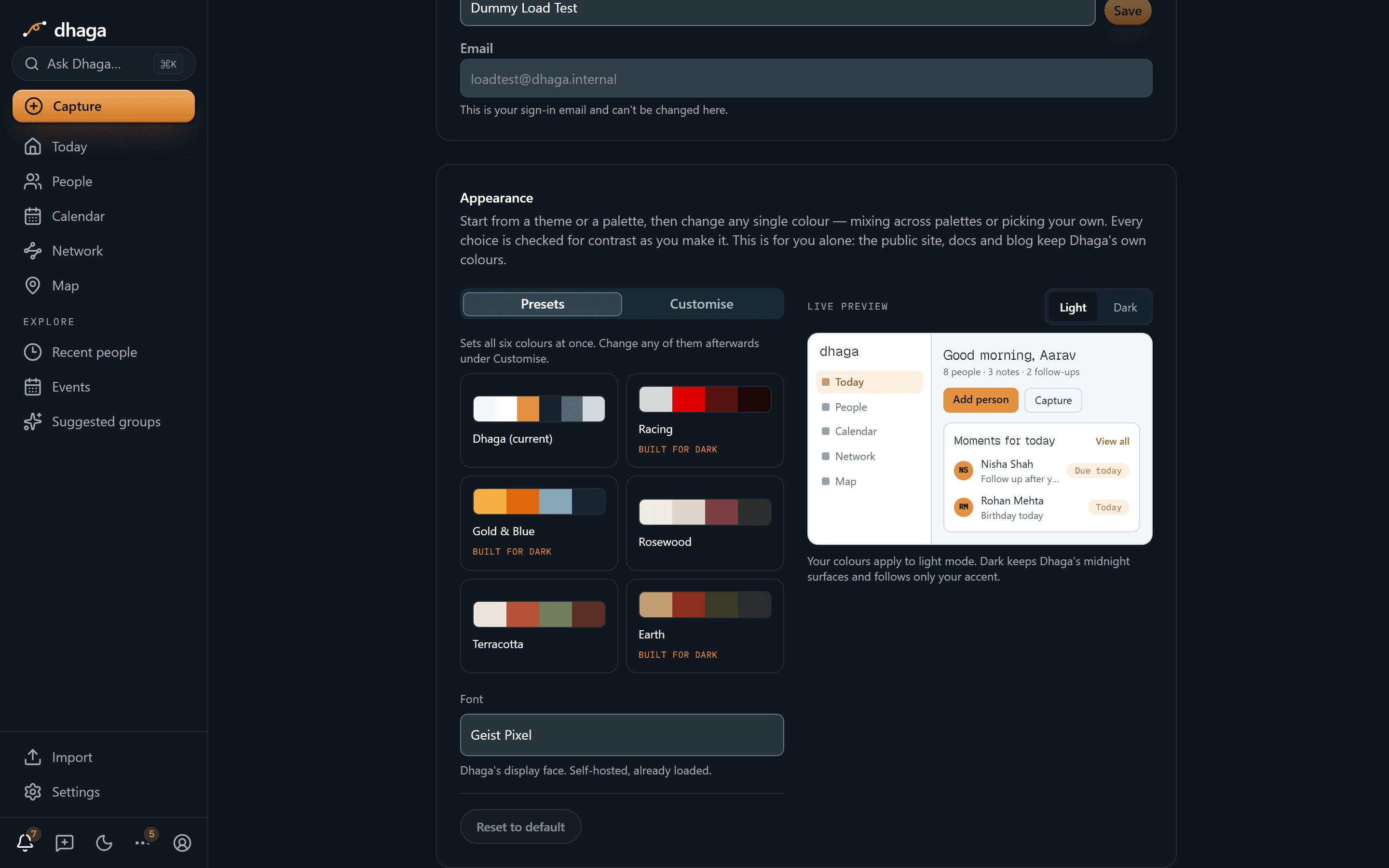
Everything on this card is live. There's no Save button: the app repaints as you click, and a small preview of Dhaga sits beside the controls so you can see a choice on the real layout — nav rail, cards, buttons and all — before you commit to living in it.
Start from a palette
Six palettes ship under Presets: Dhaga (current), Racing, Gold & Blue, Rosewood, Terracotta and Earth. One click sets all six colours at once. Three of them are marked Built for dark — their colours were designed for dark surfaces, so in light mode Dhaga keeps a pale background and lets the palette drive your accent and text instead. The card says so, and a note under the grid explains it when you pick one.
Or change one colour at a time
The Customise tab lists the six things a colour can actually be:
| Row | What it paints |
|---|---|
| Main accent | Primary buttons, the active nav item, focus rings, status pills |
| Accent text | Links, the active nav label — derived, not chosen |
| Background | The page behind everything |
| Cards & rail | Tiles, cards, the left navigation rail, menus and sheets |
| Text | Headings, body copy, people's names |
| Muted text | Secondary lines, timestamps, section labels |
| Borders | Card edges, dividers, secondary button outlines |
Each row shows the name of the colour it's on — "Racing Red", "Warm Greige", or Custom for one you mixed yourself. Click the swatch to change it: you get every colour from every palette, by name, so you can take Rosewood's background and Racing's accent. At the bottom of that list is a colour picker and a hex field, if you want something that isn't on offer.
The (?) beside each row tells you what that colour paints — and dims the preview down to exactly those parts of the app, so you can see it rather than read it.
Accent text is worked out for you
One colour can't be both a readable button fill and readable text on your background — the two contrast ratios multiply to a fixed number, so passing both is arithmetically impossible. Dhaga therefore moves your accent until it clears the 4.5:1 readability bar as text, and shows you the result. Every other row carries its measured ratio too, so you can see a choice go under the bar as you make it.
Colours change the hues, not light vs dark
Light and dark stay where they always were — on the toggle in the top bar. Your colours apply to light mode; dark mode keeps Dhaga's midnight surfaces and follows only your accent, so the toggle keeps doing exactly what it did. The Light / Dark switch above the preview changes only the preview, which is how you check a light palette without leaving dark mode.
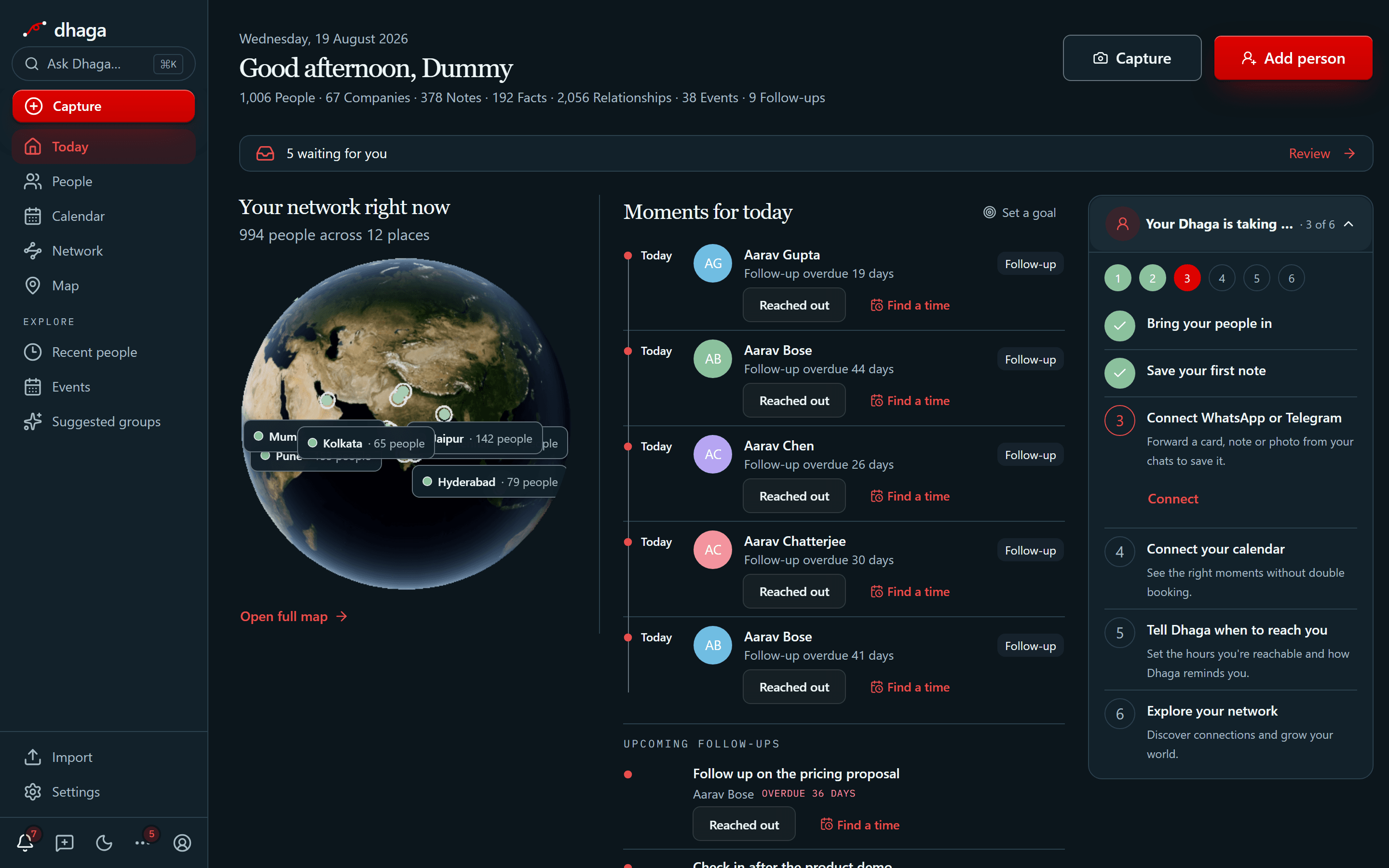
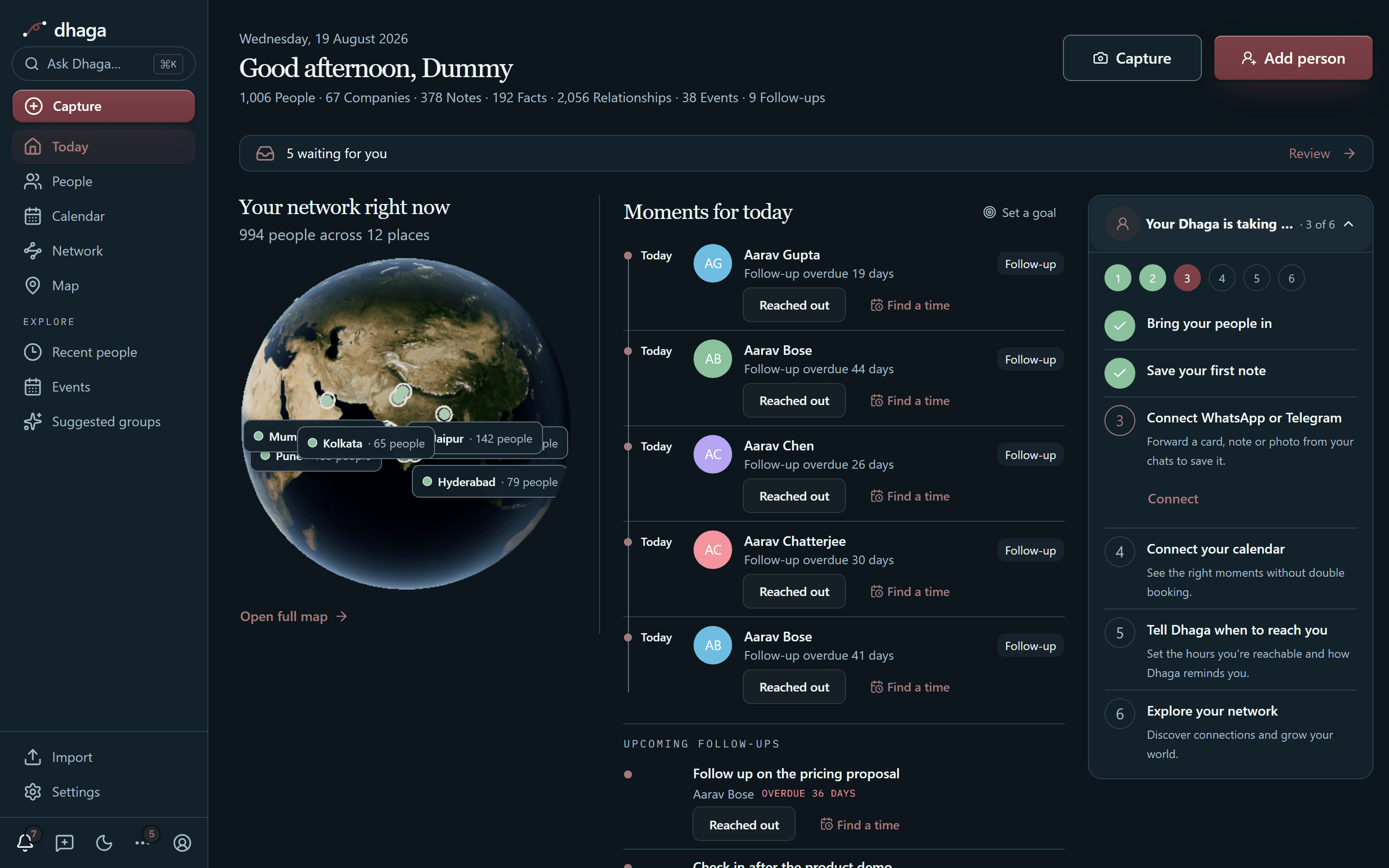
The shipped palettes are contrast-tested in CI on every change — body and secondary text and accent text against WCAG AA, and control borders against the 3:1 minimum. A colour you mix yourself can't be held to that in advance, which is why the panel measures it in front of you instead: each row shows its ratio, and a failing one is called out rather than silently accepted. If your background ends up too dark to read your text on, light mode falls back to Dhaga's own background and tells you it did — an unreadable app is a much worse outcome than an overruled colour.
Pick a font
The Font dropdown offers Geist Pixel (Dhaga's own display face, and the default), System (your OS's own UI font — downloads nothing), and Inter, Roboto, Open Sans, Lato, Montserrat and Poppins. The dropdown and each option render in the face they name, so you can see the choice before you make it. Nothing is downloaded until you actually open the list — staying on Geist Pixel costs you no extra font download at all.
It follows you, and it stops at the app
Your choice is saved against your account on the server, not in the browser — so it's there on your laptop, your phone browser and any machine you sign in on next, and clearing your browser data doesn't lose it. Because it's stored server-side, the app arrives already wearing your theme: there's no flash of the default palette while a page loads.
It applies to /app only. The public site, this documentation and the blog
keep Dhaga's own colours. That's deliberate rather than an omission — those
pages are pre-rendered and shared with everyone, and making them per-reader
would mean rendering them fresh on every visit and giving up their page speed.
Reset to default puts everything back: Dhaga's own colours and Geist Pixel. It's greyed out when you're already on both.
Older theme choices still apply
Dhaga used to ship eight fixed themes (Dhaga Classic, Monochrome, High contrast, Rose, Ocean, Forest, Violet). If you picked one of those, it's still in force — it sits underneath as your starting point and the colours above layer on top. There's no longer a control to switch between them; Reset to default is how you leave one. The two screenshots above are from that older picker.
Connect your AI assistant
Account → Connect your AI assistant sits directly above the API keys
card. It shows two things, each copyable in one click: this instance's MCP
endpoint, and the npx skills add command that teaches an assistant how
to use Dhaga. A token from the card below it is what a client running on your
own machine — Claude Code, Cursor — signs in with; claude.ai and ChatGPT connect
as a connector instead and need no token at all. On a hosted instance both routes
need Pro or Power: the connector isn't a way around the gate on creating a token,
because the endpoint itself checks the plan. Which route is yours, and what to
paste where, is in Connect your AI assistant.
One email a day
The switches under Suggestions choose sections of a single daily email, not separate emails. Dhaga sends you at most one scheduled message a day — the daily brief — and each toggle decides whether a part of it is there:
| Toggle | What it adds to the brief |
|---|---|
| Morning follow-up reminders | Follow-ups due soon or overdue, and a count of everything else still waiting |
| Birthdays & anniversaries | Saved dates coming up inside your lead time |
| Confirmations digest | The AI confirmations waiting for your review |
| Reach-out digest | Who to reach out to today — or, on a day nobody is due, a couple of threads going quiet |
They used to be separate jobs that each decided on their own whether to write to you, which is how three emails could land within a minute of each other. Now the decision is made once: your sections are gathered, the most urgent goes first, and one message goes out.
When it lands, and where, is yours to set — the When to send your daily summary card directly below the time zone picker takes an hour and a quarter past it, reads your choice back in your own zone, and carries a switch each for Email and Chat (WhatsApp or Telegram). Nine in the morning is the default. Getting it in chat is part of the Power plan; on every other plan it arrives by email. The full walkthrough, along with the short nudges Dhaga sends before a meeting or a timed follow-up, is in Reminders & the daily brief.
Those pre-event nudges have their own timing, in the When to nudge you before something starts card directly below. It takes one lead time — at the start, five, ten, fifteen or thirty minutes, an hour, two hours, or a day before — and applies it to every meeting and timed follow-up. Ten minutes is the default. A meeting that already carries its own reminder in Google or Outlook keeps that timing instead, so you never have to say the same thing twice.
At the bottom of the tab, Auto-suggest sectors is greyed out and marked Coming soon. It's the switch that would have Dhaga guess an industry for every new person you add, instead of you asking for a batch. It doesn't do anything yet, and it's shown switched off so you can see it's coming rather than find it later — until it works, sectors are only filled in when you ask, from Suggest sectors on People or Companies.
On a day with nothing in it, nothing is sent. There's no "you have nothing today" email. If you're new and your graph is still empty, you'll get a short nudge about adding your first person instead — at most three times, a week apart, and never alongside a brief.
Every one of these emails ends with a link back to this tab, so you can turn any of it off from the message itself. Emails Dhaga sends because you did something — a password reset, a verification link, the event digest you asked for — carry no such link, because no switch here turns them off.
Which switches are already on
Accounts created since 8 August 2026 start with these on, and you turn off what you don't want. Anything older starts with all of them off and stays silent until you switch something on.
Your time zone
Under Suggestions, Time zone is the setting that decides where your day begins and ends. Search for a city or region, or take the Use detected zone shortcut when Dhaga notices your browser disagrees with what's saved — it fills the box for you and waits; nothing changes until you press Save.
It matters because reminders are about days. With it set, a birthday reaches you on the day it is where you are, rather than wherever the server happens to be, and a reminder you've already had can't arrive again.
It also interprets the hour you pick
Your time zone decides which day a reminder belongs to — and it's the zone the daily brief's send time is read in, which is why the two cards sit together. Change your zone and the brief keeps landing at the hour you chose, on the new clock.
New accounts start on UTC until you choose one, so nothing shifts under anyone who hasn't looked at this yet.
Delete your account
The bottom of the Account tab is the danger zone, and it does exactly what
it says: Delete account erases your login and everything in your graph —
contacts, companies, notes, facts, edges, embeddings, events, follow-ups, tags,
groups, saved views, imports, attached files and connected-account tokens. It is not a
deactivation and there is no undo, so it asks you to type either your email
address or the word DELETE before the button arms.
Export first if you might want it back
Deletion cascades on purpose — that is the promise in the Terms and the whole point of an erasure right. The People page carries CSV, vCard, JSON and archive export links in its header; take one first if there is anything you would miss. Once the button is pressed there is nothing left to export from.
Take the archive if you have attached files. The JSON lists every attached
file — name, type, size and id — but not the file itself, so on its own it is
not a complete copy of your account. Archive is that same JSON plus every
document you uploaded, in one zip: dhaga-export.json at the top, and your
files under attachments/, each named with the id the JSON uses so you can
match them up. It is larger and takes a moment to build, which is the only
reason it is not the default.
Very large accounts are the one case where it can fail: the download has about five minutes to assemble, so several gigabytes of files may not finish. If that happens Dhaga tells you rather than handing you a half-written zip — take the JSON export and download the files from each person's or company's page.
Two things deliberately survive, and both are named on the page rather than buried here:
- A live paid plan blocks deletion. You are asked to cancel first, because deleting the account would remove our only record of whose subscription it is while the processor keeps charging the card. Cancelling is your decision to make, not something we should do silently on your behalf.
- Payment records are kept. The charge ledger is a financial record we are required to retain, and it survives with a user id that no longer resolves to anyone. It contains what you paid and when — not your graph.
Contacts & sync
Contact imports and connected Google or Outlook accounts are managed on the
dedicated Contacts & sync page (/app/import). Capture → Contact
accounts remains a short link for discoverability, and an old
/app/settings#import bookmark redirects to the hub automatically. LinkedIn's
option accepts the ZIP from its export email directly; vCard and CSV imports are
parsed in your browser before you choose who to save.
See Importing contacts for the full walkthrough.
Organizations
An organization is a shared workspace with its own contacts and notes, apart from your personal one — how to switch in, how contacts arrive, who sees what.
AI credits
The Credits tab in Settings — how many AI credits you have left this month, what each action costs, and exactly where the ones you spent went.