Confirmations
Review ambiguous AI suggestions and calendar-date choices without letting uncertainty make a silent decision.
When Dhaga is sure about what it extracted, it just writes it. When it isn't — a name that could be two different people, a web-sourced fact that might not be the right person — it doesn't guess. It parks the doubt as a confirmation and lets you decide. AI proposes, code disposes: the model only ever writes a confirmation row; your graph is changed by a deterministic resolver, and only once you say yes. Calendar-date confirmations are the documented exception: they preserve an already-scheduled safe default while asking which day you want.
The /app/confirmations inbox is where those doubts collect. It
shows in the navigation as Needs review, with a small amber count pill when any
are waiting, and is hidden while there is nothing to review.
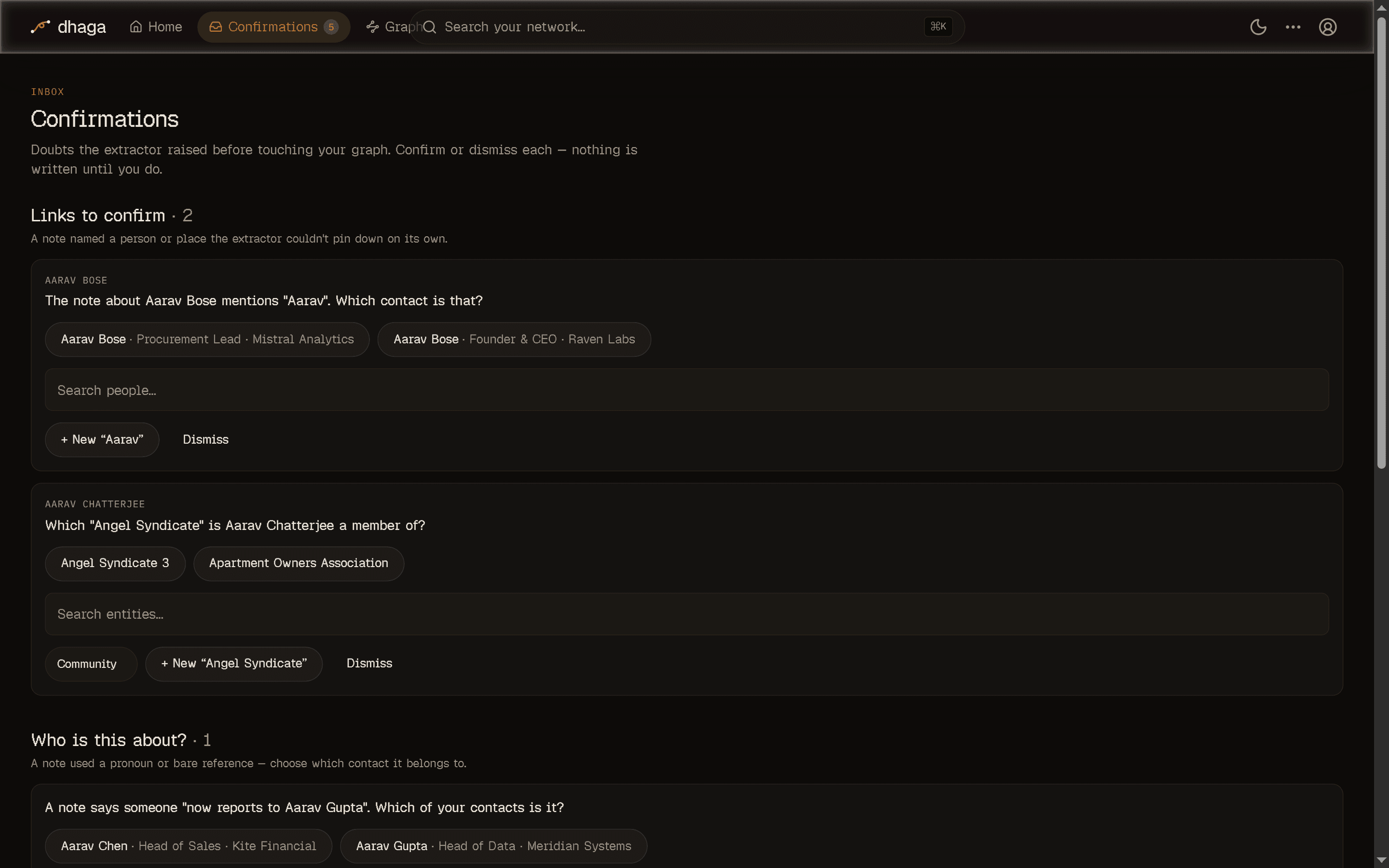
The five kinds of confirmation
Most confirmations hold an AI doubt; the fifth records a calendar choice:
- Entity link — an ambiguous mention. You wrote "I know Rohan" and you have two Rohans; Dhaga asks which contact the relationship should point at rather than picking one. When the mention is a place or a thing rather than a person, the same card searches your entities and your companies, and always offers two ways to make a new one: + New entity — pick its type, or, if you haven't created any types yet, name the first one right there on the card — and + New company, for when the extractor read an organisation as a generic entity. + New company reuses a company you already have, including one that matches only by an alternate name, rather than creating a duplicate you would have to merge back.
- Subject resolution — the classic "who is he?". A note refers to someone by pronoun or a bare first name, and Dhaga asks which contact is the subject before wiring up the relationship.
- Enrichment match — a fact pulled from the public web that might not really be this person. Confirming clears the unverified badge; dismissing removes the fact.
- Supplement — a batch of newly-extracted facts and edges ready to fold into an existing contact, once you okay the addition.
- Follow-up date — “next weekend” is scheduled for Saturday immediately. Keep it there or move it to Sunday; dismissing leaves Saturday scheduled.
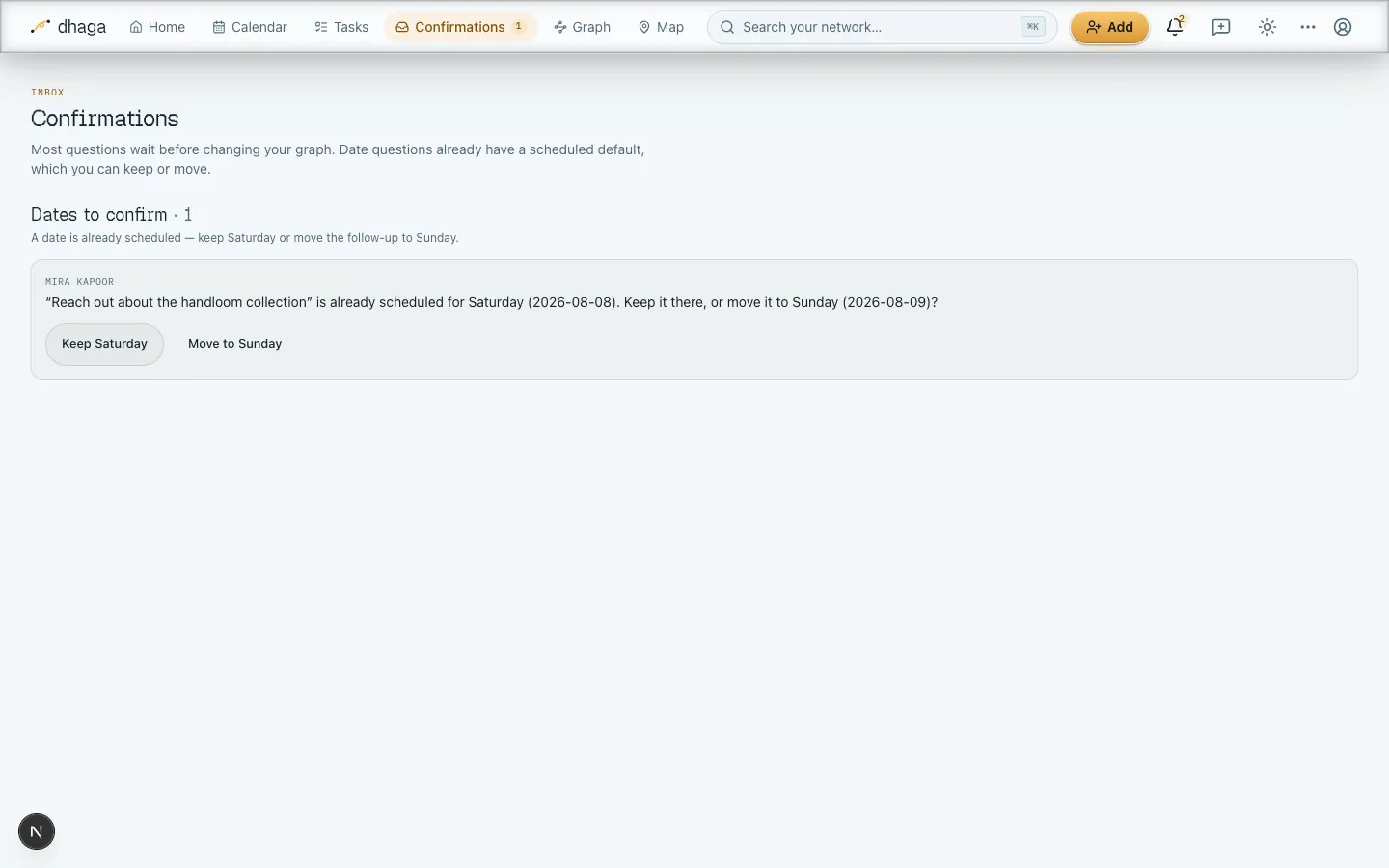
Confirm or dismiss
Every row shows the question and — where relevant — the candidates to choose from.
- Confirm and the deterministic resolver applies the exact proposed action: it links the edge to the contact you picked, verifies the fact, or folds in the supplement. The action is stored on the confirmation, never re-derived from free text, so what you approve is exactly what runs.
- Dismiss and an AI doubt is discarded, changing nothing. Dismissing a date choice keeps its already-scheduled Saturday default.
Doubts wait; date choices are already scheduled
Entity, subject, enrichment, and supplement doubts write nothing until you confirm. A follow-up-date card is different: Saturday is already on your calendar so the reminder cannot disappear while it waits for review.
Who is this note about?
Where this question waits depends on where the note came from. A note you type in quick-add raises it inline, the moment you capture: the card pops up right there in the capture panel and you answer it on the spot, before anything is saved — so it never lands in the inbox. A note you forward to the messaging bot has no capture panel, so the same card waits here and counts toward the nav badge — but the inbox is no longer the only place to answer it. The bot asks you in the chat too, with the candidates numbered, and a reply of a number or a name is applied through this very card. They're one question, not two: answer it in either place and it's settled.
The inbox is what catches everything the chat can't. A question with nobody to offer isn't asked in the chat at all — the only answer left is "add a new person", and that isn't something a numbered reply can do — so those wait here. So does one you leave for more than about six hours, and one you simply ignore; anything you send that isn't an answer is read as an ordinary message rather than eaten as one. The mechanics are in Answering it in the chat. (See Capture a note from quick-add for how a typed note gets recognised in the first place.)
The card shows the note text up top so you have the full context, then gives you two ways to place it:
- Pick a person — contacts whose name matches the note's subject appear as chips; tap one and the note attaches there, its facts and relationships extracted as usual. You can also search for anyone else if the right person wasn't surfaced.
- Create a new one — a name field, prefilled with the name from the note, lets you say "no — this is a different Priya, add them". Dhaga creates a fresh contact and attaches the note to it. When nobody matched at all, the card leads with this.
Not every note is about a person. Below those answers the card also lets you file it on a company or a group, or Add to a list — the right home for a link you forwarded to read or watch later. Pick one of your lists, or name a new one and confirm it; the note becomes an item on that list and is kept as the item's source. If you have no lists yet, the card offers to make your first one.
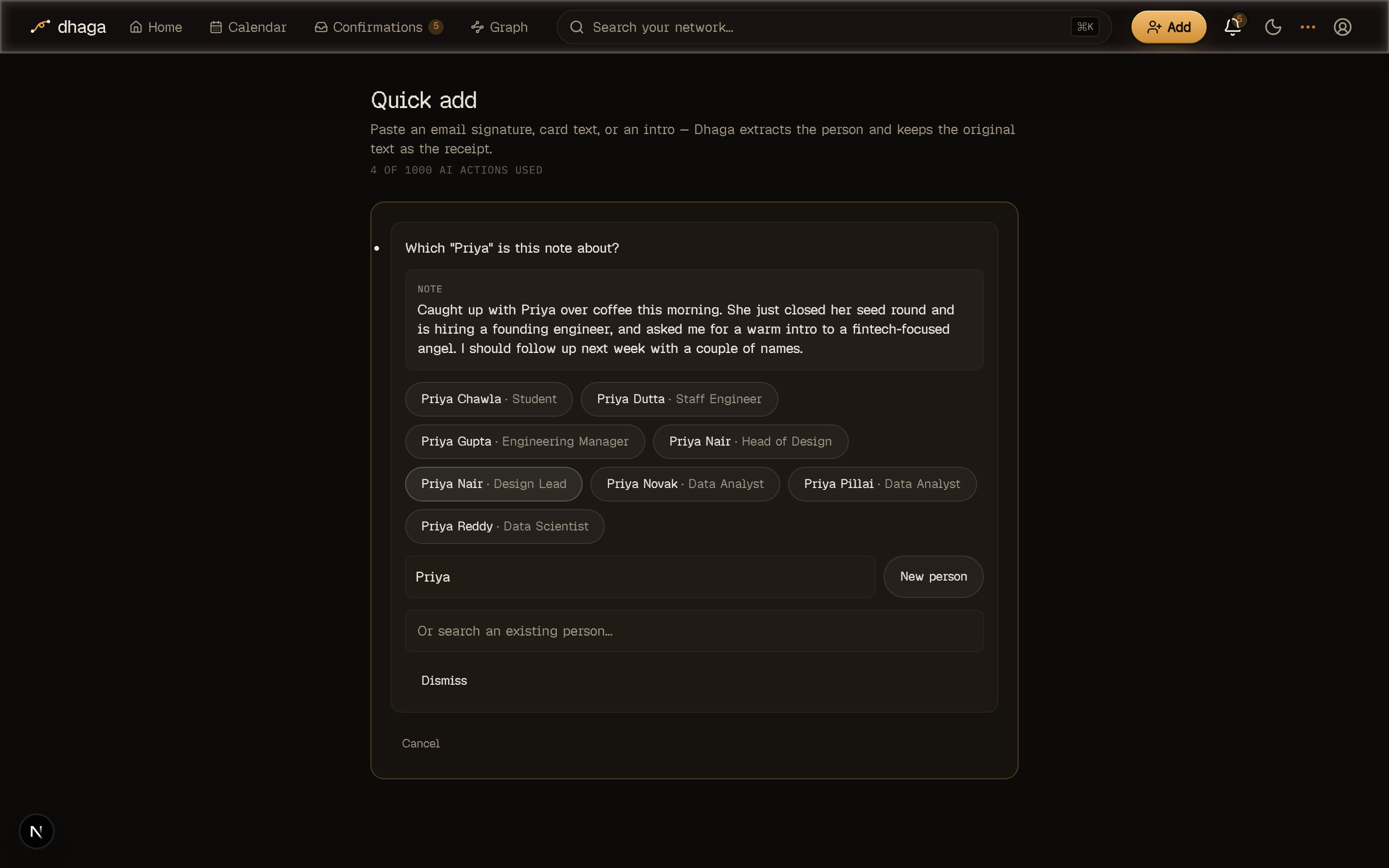
Dismiss drops the captured note without writing anything — the same rule as every other confirmation.
Where they surface
- Home shows a To confirm tile listing the first few pending questions, with a link straight through to the inbox. It only appears when something is waiting — it's an alert, not a fixture.
- The nav badge carries the pending count so you can see there's something to review without opening the page.
Get them by email
If you'd rather be nudged, turn on the Confirmations digest under Settings → Suggestions. It isn't an email of its own: it adds a Waiting for your review section to your daily brief, the one message Dhaga sends each day. With nothing pending, the section — and possibly the whole email — simply isn't there. It arrives at the hour you chose for the brief, on your own clock.
This section is email-only, even if you have the brief's chat channel on. The chat version of the brief carries names and counts and nothing else, and a pending confirmation is a question — it can't be shortened to a name without becoming meaningless. So the chat message won't mention them; the email will. Like everything else in the brief it needs email configured on the instance — see Settings and Self-hosting.
Reminders & the daily brief
The two messages Dhaga sends you: one daily summary at a time you pick, and a nudge before a meeting or timed follow-up — by email, or chat on Power.
Enrich from the web
Search the public web for a person's or a company's footprint on demand — always user-triggered, cited on every finding, and saved as a note you can delete.