Notes & facts
Add notes by typing, voice or photo; Dhaga extracts facts with a receipt on each — or add facts by hand, no AI needed. Attach files; deletions cascade.
Everything you know about a person lives on their profile at
/app/people/[id] — their jobs, contact methods, location, relationships,
and, below that, their notes and facts.
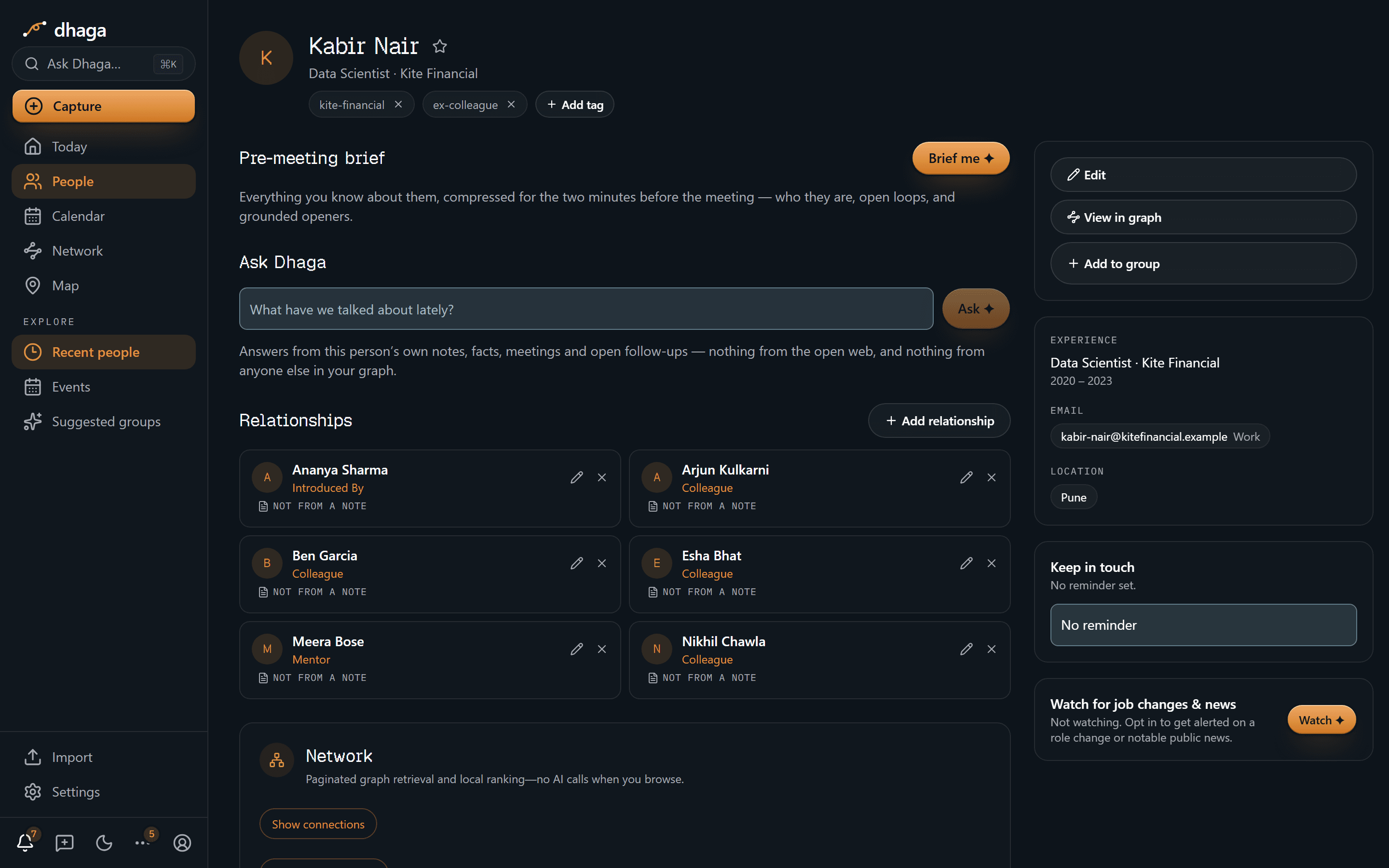
Add a note
In the Notes box on a person's page, either type what you remember or tap the mic and just talk — voice notes are transcribed for you. The box hints as much: "Type — or tap the mic and just talk. Facts get extracted automatically." With Dhaga Voice, the transcript comes back as tappable word-chips so you can fix any mis-heard word — doing so teaches Dhaga that spelling for next time. Or photograph it — the third way into the same box.
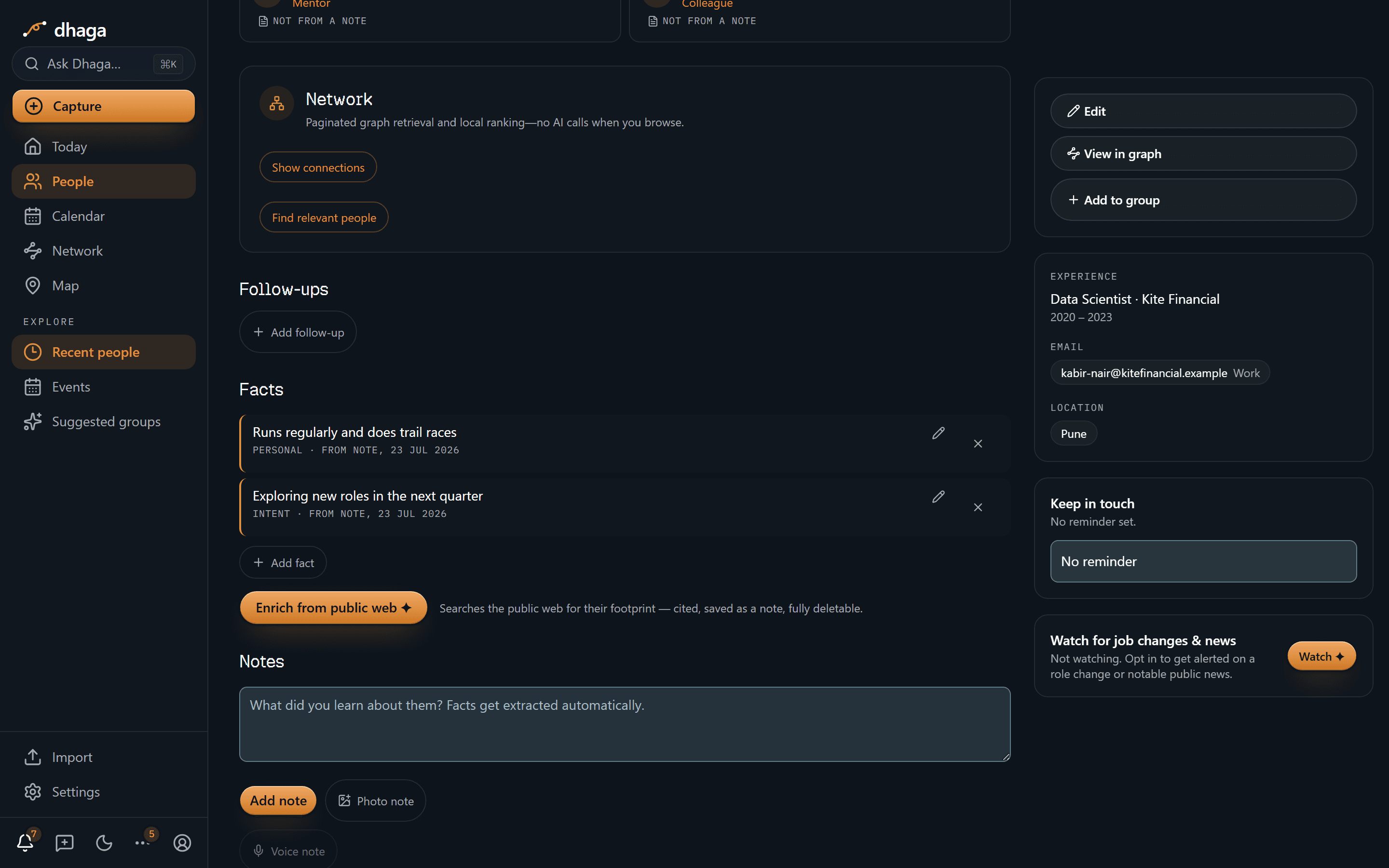
Add a note from a photo
Some things are quicker to photograph than to write down: a whiteboard after a session, a conference poster, a page of handwritten notes, a receipt from the dinner, the badge someone was wearing.
Tap Photo note in the same Notes box and pick or shoot the photo. Dhaga reads the text out of it and that text becomes the note — so it is searchable, it shows in the person's timeline, and it goes through exactly the same extraction as anything you type: facts, follow-ups and relationships, each with a receipt pointing back at this note.
- Several photos, one note. Add up to six — pages of the same handout, or two halves of a whiteboard. They are read in tray order, so reorder them with the arrows if you shot them out of sequence, and crop out anything that isn't the subject.
- Add your own line too. Anything you type in the box is kept above the transcription, as your framing of why the photo matters.
- The photo is kept as the receipt. It appears under Photos on the person's page, alongside any scanned cards, unless you have turned photo storage off in Settings — in which case only the transcription is kept. Deleting the note deletes its photos with it.
Reading a photo is a cloud-AI action, so it costs credits like any other — 2 in total, since reading the image and extracting facts from it are two actions. With no credits left, or on an instance with no AI configured, type the note instead — a photo alone has nothing to save.
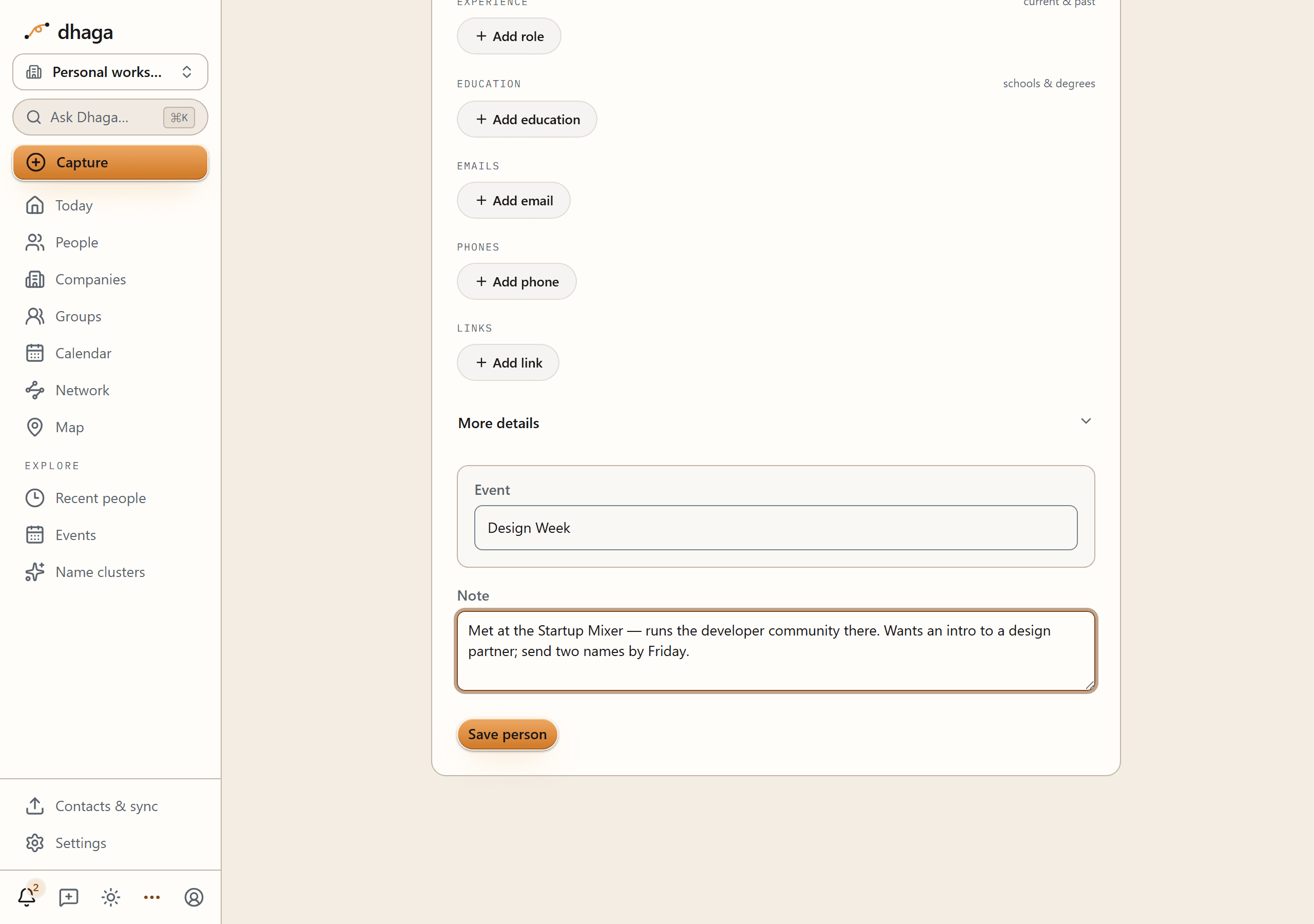
Add a note as you save someone
You don't have to wait for a person to exist before writing about them. Every
form that creates a contact — Add a person, the review dialog after a
paste or a card scan, and the full form at /app/people/new — carries a
Note box under the contact fields, so the reason you're adding them goes in
at the same moment as their phone number.
What you type is kept word for word and then extracted exactly as a note typed here on their page would be: same facts, same follow-ups, same receipts, same one credit. Leave the box empty and nothing is created and nothing is spent. Run out of credits mid-capture and the words are still saved — you lose the extraction, which you can re-run later, and never the note.
A scanned card ends up with two notes, deliberately: the card's own text is Dhaga's record of what it read, and your line is your own. Both are editable and deletable on their own. See Write the note as you add them.
Capture a note from quick-add
You don't have to be on someone's page to note something about them. Type a free-text note into quick-add — "Met Priya, discussed the Q3 pilot" — and Dhaga recognises it as a note about a person you already have, not a brand-new contact to create.
It matches the name against your contacts and attaches the note to that person's timeline, where its facts and relationships get extracted just like any note you add on their page.
- One clear match and it attaches straight away — "Added a note to Priya", nothing to click.
- Unsure — several people could be the Priya you meant, or nobody matches at all — and Dhaga asks first instead of guessing, showing a who-is-this-about card right in quick-add so you can pick the right person or add a new one on the spot.
Facts get extracted automatically
When you save a note and you have AI credits left this month, Dhaga extracts structured facts from it — for example a personal detail or an intent ("wants an intro to a designer"). Each fact is tagged by kind (PERSONAL, INTENT, and so on).
Every extracted fact carries a receipt: the source note it came from, shown as "FROM NOTE, 23/7/2026". This is a core principle — no AI-derived fact exists without a traceable source you can open and verify.
Extraction runs in the background, and the note is saved the moment you press Add note — so you never have to sit and watch it. A small pill above the Facts section reports progress ("Extracting facts…"), and it keeps running if you navigate away or close the tab: the facts are written server-side regardless of who is watching. While you're on the page, the pill turns into a short confirmation of what landed — "Extraction finished — 4 facts and 1 follow-up added." — and clears itself. If a run fails, the pill says so and offers Retry.
If you've already moved on, the finished run reaches you through the bell in the top nav instead — "Extracted 4 facts and 1 follow-up from your note about Priya" — and clicking it takes you back to the person. Runs that failed, or that stopped because you're out of AI credits, say so there too, so a job never finishes in silence.
A note costs 1 credit to extract (a photo note costs 2 — reading the image and extracting from it are two actions). Run out and the note is still saved, with the shortfall spelled out: "Note saved. You're out of AI credits this month, so facts weren't extracted." Add the facts by hand below, or re-run extraction after the counter resets. See AI credits.
See what a note produced
A receipt says which note a fact came from; on a person's page you can also see it. Click any note, fact or follow-up and Dhaga highlights that note along with everything else it produced — so one click answers "what did this conversation actually give me?", from either end. Click the highlighted item again to clear it.
Anything you added by hand has no note behind it, so it never highlights and isn't clickable — the absence is the honest answer.
Each note also has its own link (the chain icon on the note row). Copy it to come back to this person with that note already selected and scrolled into view, or to point yourself at the exact note behind a fact. The selection lives in the address bar, so Back and Forward step through it.
Add facts and follow-ups by hand
You don't need cloud AI to build a person's profile. When your credits are gone — or any time you'd rather just type it — use + Add fact in the Facts section and + Add follow-up in the Follow-ups section. Manual facts have no source note (nothing to trace back to) and are saved as already-verified, since you entered them yourself. Everything else in Dhaga — contacts, jobs, contact methods, relationships, groups — is fully editable by hand too, so the app is completely usable with no AI at all.
A company's page carries the same + Add fact, and it behaves the same way: no AI, no credits, saved as already verified, and with no from note receipt — nobody's note is where it came from. See Companies.
Every follow-up on a person's page shows the day it was added under its action, so one that carries no due date still has a date you can judge it by.
Manual follow-ups can repeat. Clear date phrases in notes are resolved with calendar code rather than guessed at: “tonight” lands on today, “next weekend” defaults to Saturday and offers Sunday in Confirmations. See Tasks & recurring follow-ups.
This is the user's data about third parties
Facts are extracted from your notes about the people you meet. Nothing is collected silently — a fact only appears because you wrote the note it came from.
Attach a file
Some things belong with a person without being a note about them — a signed contract, the deck they sent, a spreadsheet from the meeting. The Files shelf on their page holds them. Press Attach file, pick one, and it's listed with its name, its size and the day you added it. Click the row to download it back; the ✕ removes it, after a confirmation.
- PDF, Word, PowerPoint, Excel, plain text, CSV, or a JPEG, PNG or WebP image — one file at a time, up to 4 MB each. A larger file is refused in the browser before it uploads, so you're told immediately rather than after a long wait.
- No AI touches a file. Nothing in it is read, extracted, enriched or sent to a model. It costs no credits and it works on an instance with no AI configured at all.
- Files aren't searchable, and nothing inside one becomes a fact. The shelf is storage, not another capture channel — if what matters is in the document, write it in a note as well.
- They're kept in the same database as the rest of your data, alongside your notes and contacts, never in a third-party bucket.
- They're deleted with the record they hang off. Forget the person and their files go too.
Companies have the same shelf on their own page — see Companies.
Editing, deleting, and the cascade
- Edit or delete a fact directly if the extraction got something wrong or the detail no longer applies.
- Re-run extraction on a note (the rotate icon on the note row) if you edited it or the first pass missed something — this replaces the note's derived facts and follow-ups rather than duplicating them. Anything you added by hand is left alone: a fact or follow-up you typed yourself is your work, not the model's, so a re-run no longer sweeps it away with the rest. (Hand-added rows from before this behaviour shipped can't be told apart from extracted ones, so those are still replaced.)
- Move a note to a different person (the two-arrow icon on the note row) if it landed on the wrong one — a real risk for notes captured over WhatsApp or Telegram, where Dhaga picks the person for you. Pick the right person and everything the note produced goes with it: its facts, follow-ups, tags, jobs, relationships, card photos and search index entries. Nothing is re-extracted, so it costs no credits and any fact you have since edited or verified moves across exactly as you left it. The old person loses only what that note put there — a fact you typed by hand, or a tag a second note also vouches for, stays put.
- Delete the source note and every fact derived from it is tombstoned along with it — the receipt guarantees Dhaga knows exactly which facts to remove.
- Delete the person and the cascade runs all the way down: notes, facts, graph edges, attached files, and embeddings all go with them.
The one exception is the receipt note left behind by an import or a card scan: it can't be edited, deleted, moved, or re-run through extraction. Nobody typed it — it is the permanent record of how the contact got into Dhaga in the first place, so it doesn't count toward your notes either.
Anything you captured is an ordinary note, wherever it arrived from: text saved with the browser extension, a message sent to your Telegram bot, text pasted into quick add. Those you can delete, move and re-run like any other, and the note row says which channel it came in through.
Want to add outside context to a person? See Enrich from the web.
Bulk actions & merging
Filter the People table, then act on many at once — merge duplicates, add a company, tag, star or forget in a batch — and review suggested duplicates.
Pages
Write pages, databases and a daily Journal inside Dhaga, link them to the people and companies in your network, and find everything again.