Bulk actions & merging
Filter the People table, then act on many at once — merge duplicates, add a company, tag, star or forget in a batch — and review suggested duplicates.
Your People list isn't only for browsing. Narrow it to the people you mean, select several and act on them in one go, or fold two records of the same person into a single one.
Narrow the list first
One line sits above the table: a search box and a Filter button.
Type in the box and the list narrows by name as you go. The Filter button is for the columns you pick from a list — Title, Company, Sector and Tags — and it opens a single popover with two steps: choose the field, then tick values. Sector is the industry on each person, so filtering by it is how you pull up everyone in, say, Financial Services across every employer at once. The value step has a search box of its own, and it searches the whole column rather than a first page, so a company far down the alphabet is reachable by typing it. A tick applies on its own without you closing anything, the popover stays open so you can tick a second value, and All filters walks you back to the field list.
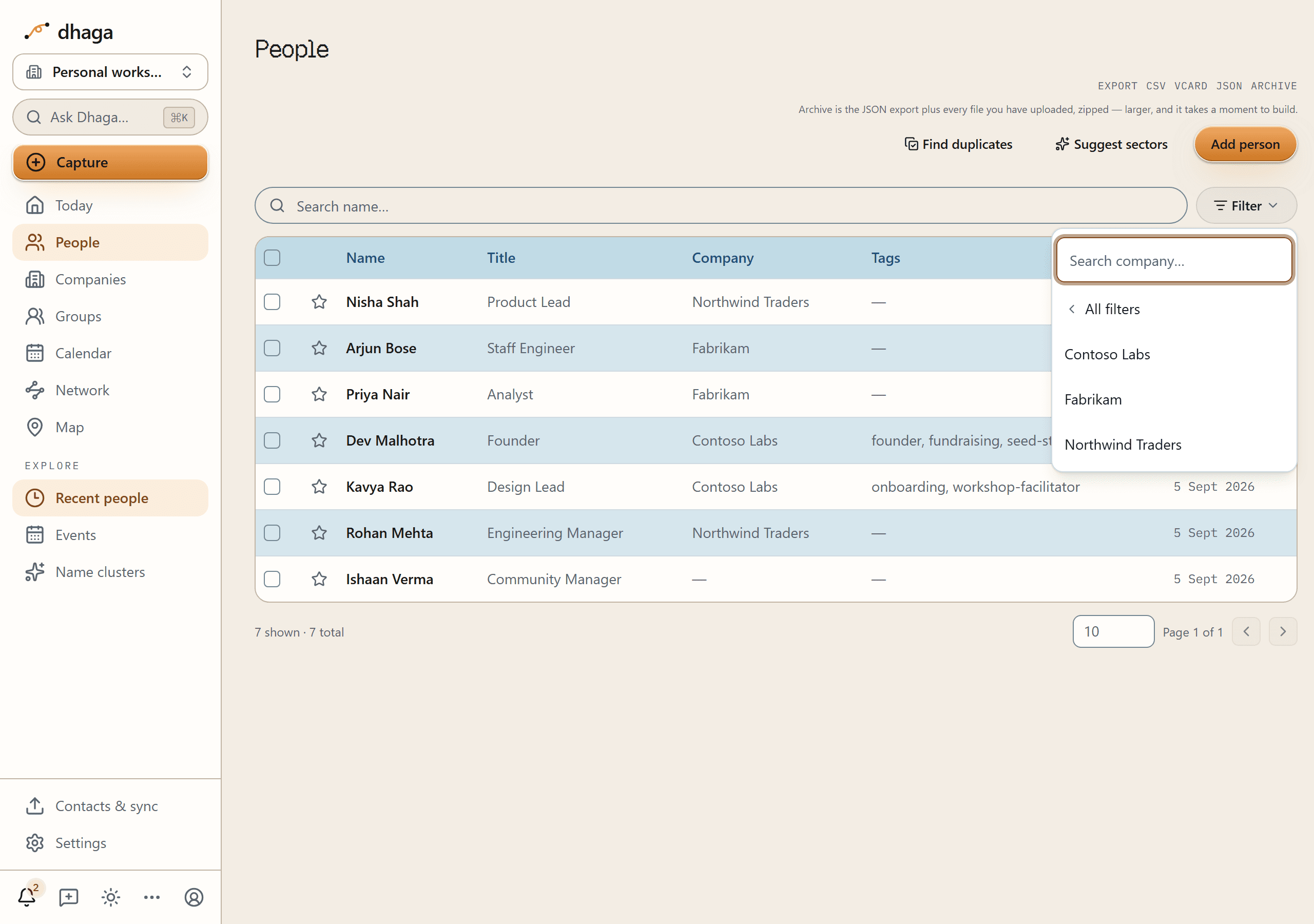
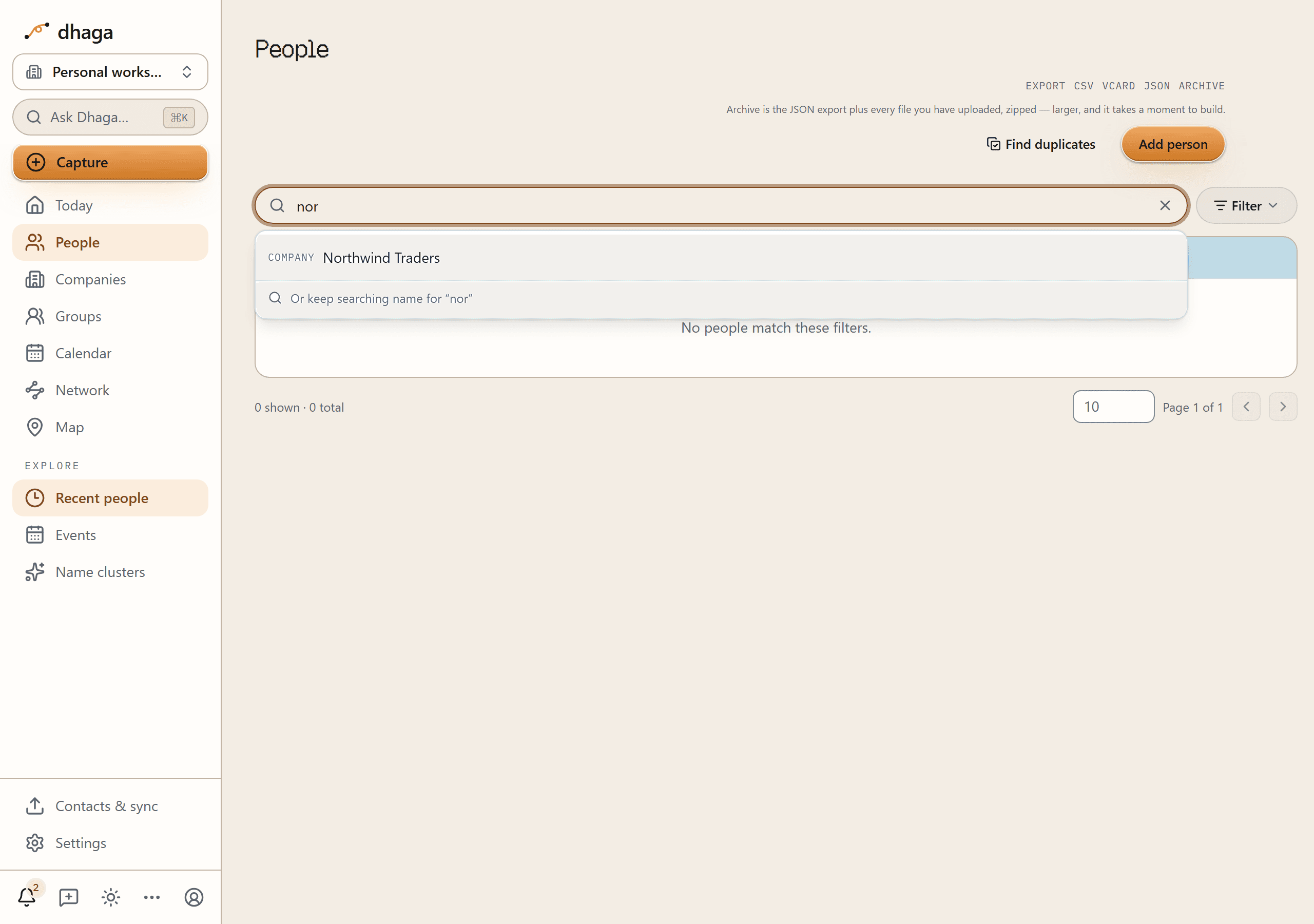
One column can hold several values. Company Northwind Traders or Contoso Labs is a single filter with two values, and each value you apply becomes a chip under the bar with an ✕ to remove it. Different columns narrow together instead: Company Contoso Labs and Tags investor means both. Clear all empties the whole bar, search box included.
A filtered view lives in the page's address, so you can bookmark it or send it to yourself and get the same list back. Changing a filter always returns you to page 1 — page 4 of the old result isn't page 4 of the new one.
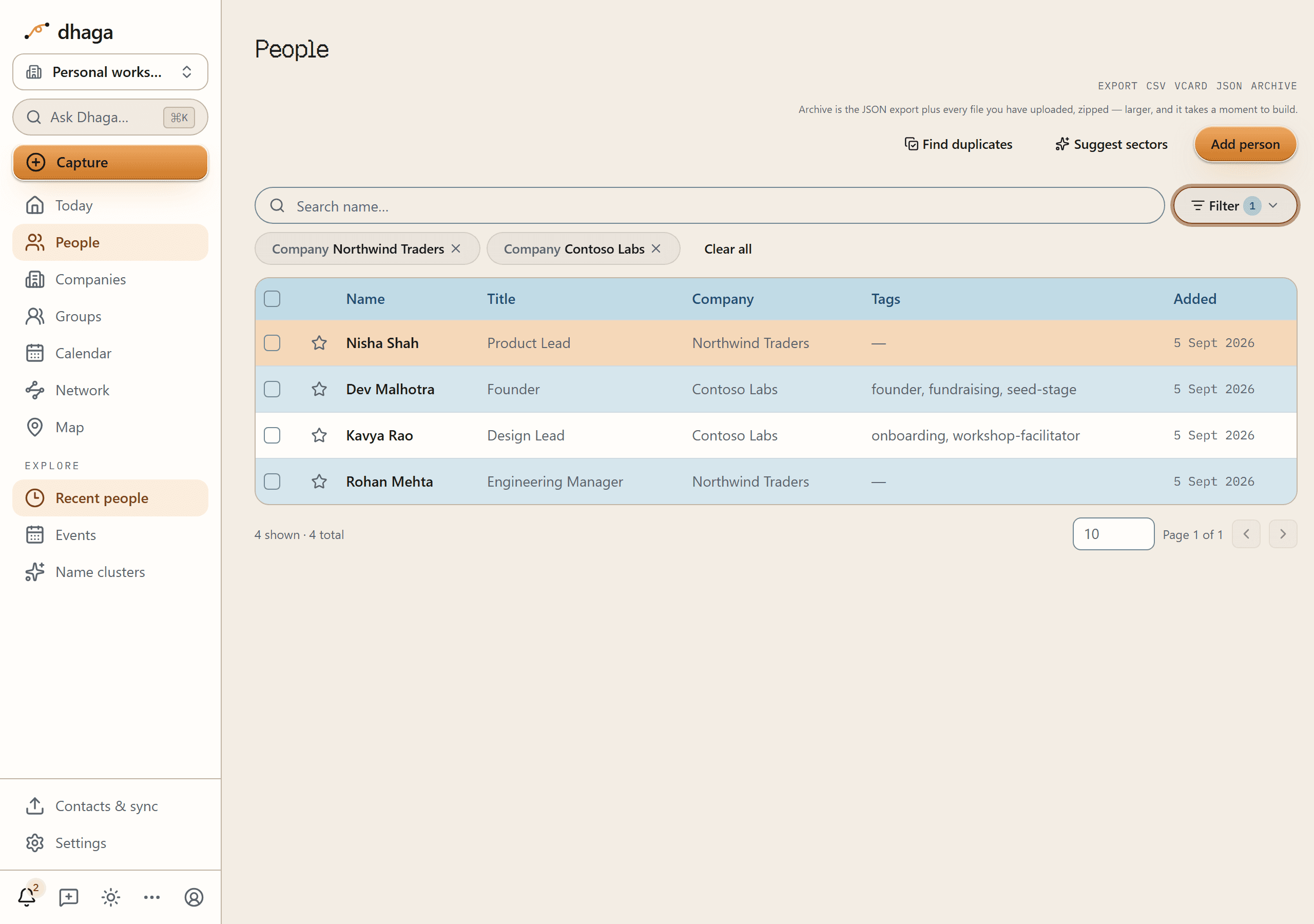
The search box suggests filters
You don't have to know that "Company" is a field. Type nor and Dhaga offers,
under the box, the filters that text could become — COMPANY Northwind Traders —
above a line naming the search already running: Or keep searching name for
"nor". Take the suggestion and it applies as a proper Company filter and
clears what you typed, because leaving both would ask for people whose name and
company matched and hand back nobody. Ignore it and your plain name search carries
on exactly as it was.
The same bar sits above Companies, Tags, Saved and the events table. What each list can be narrowed by differs, so the Filter button appears only where there is a column to pick values from.
Select people
On /app/people, every row has a checkbox, and the header checkbox selects
everyone on the current page. Your selection sticks as you page through the
table, so you can gather people across several pages before acting. The moment
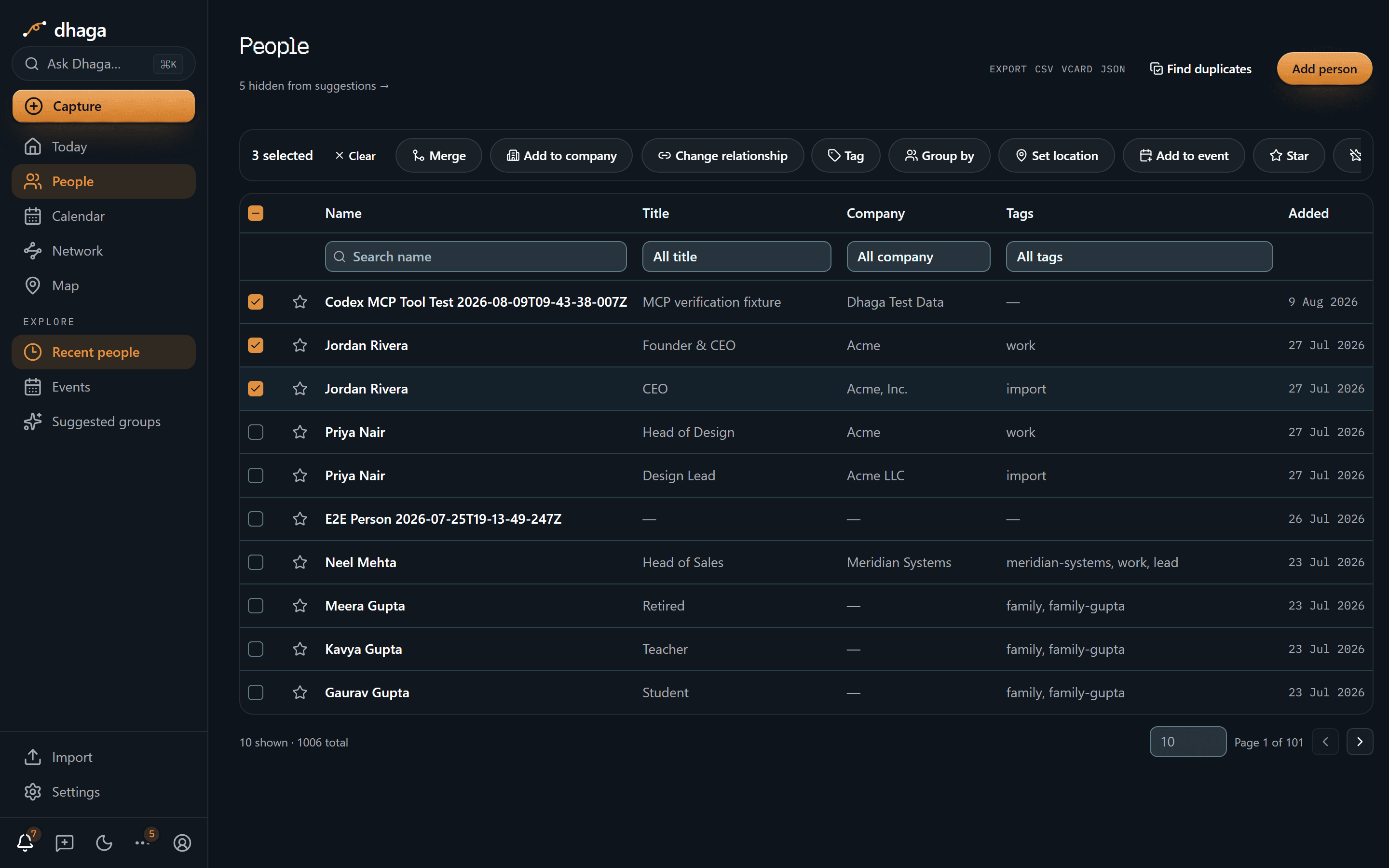
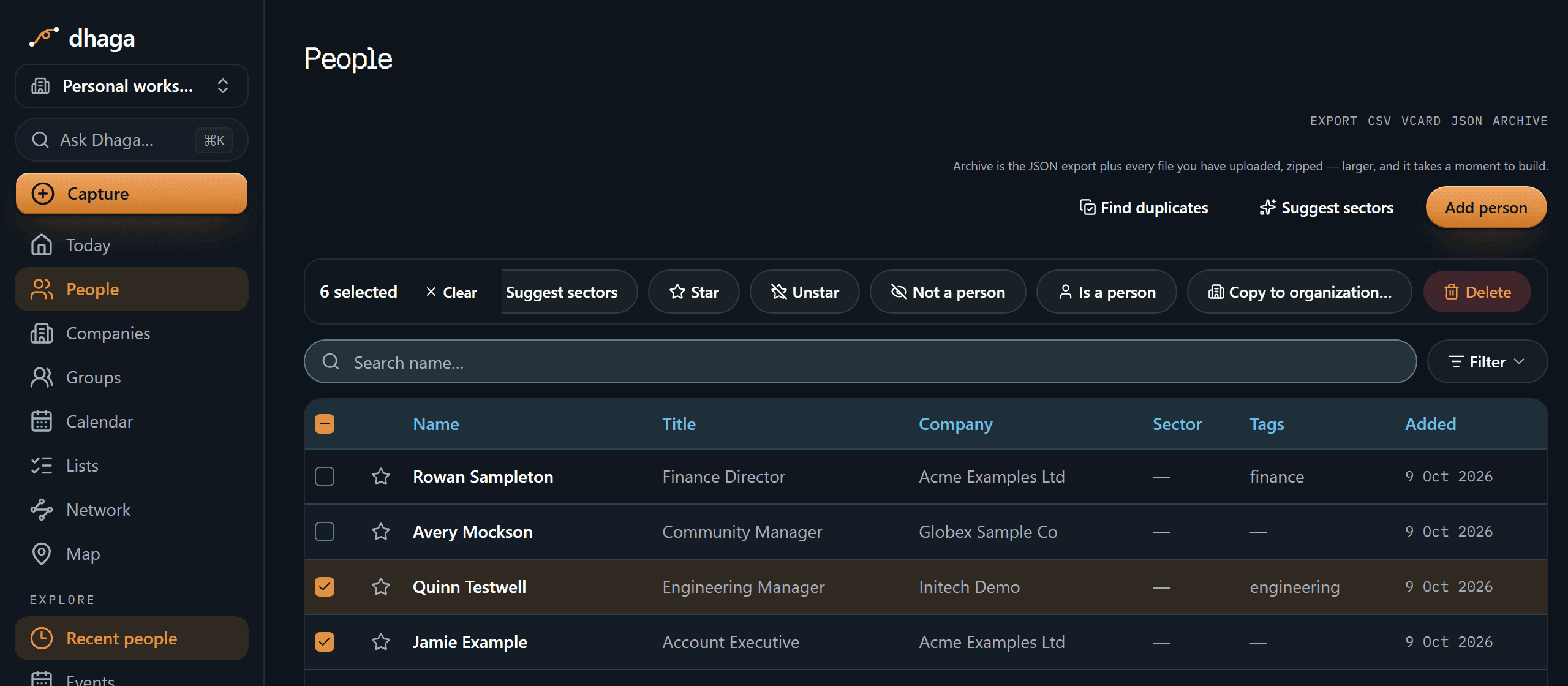
one person is selected, a bulk-action bar appears.
Narrowing the list and selecting from it stay separate steps: a filter changes what the table shows, and the header checkbox still ticks only the rows on the page in front of you.
Act on the selection
With people selected, the bar offers:
-
Merge — combine two or more records of the same person into one (needs at least two selected). See below.
-
Add to company — attach everyone to a company at once; pick an existing one or create it inline.
-
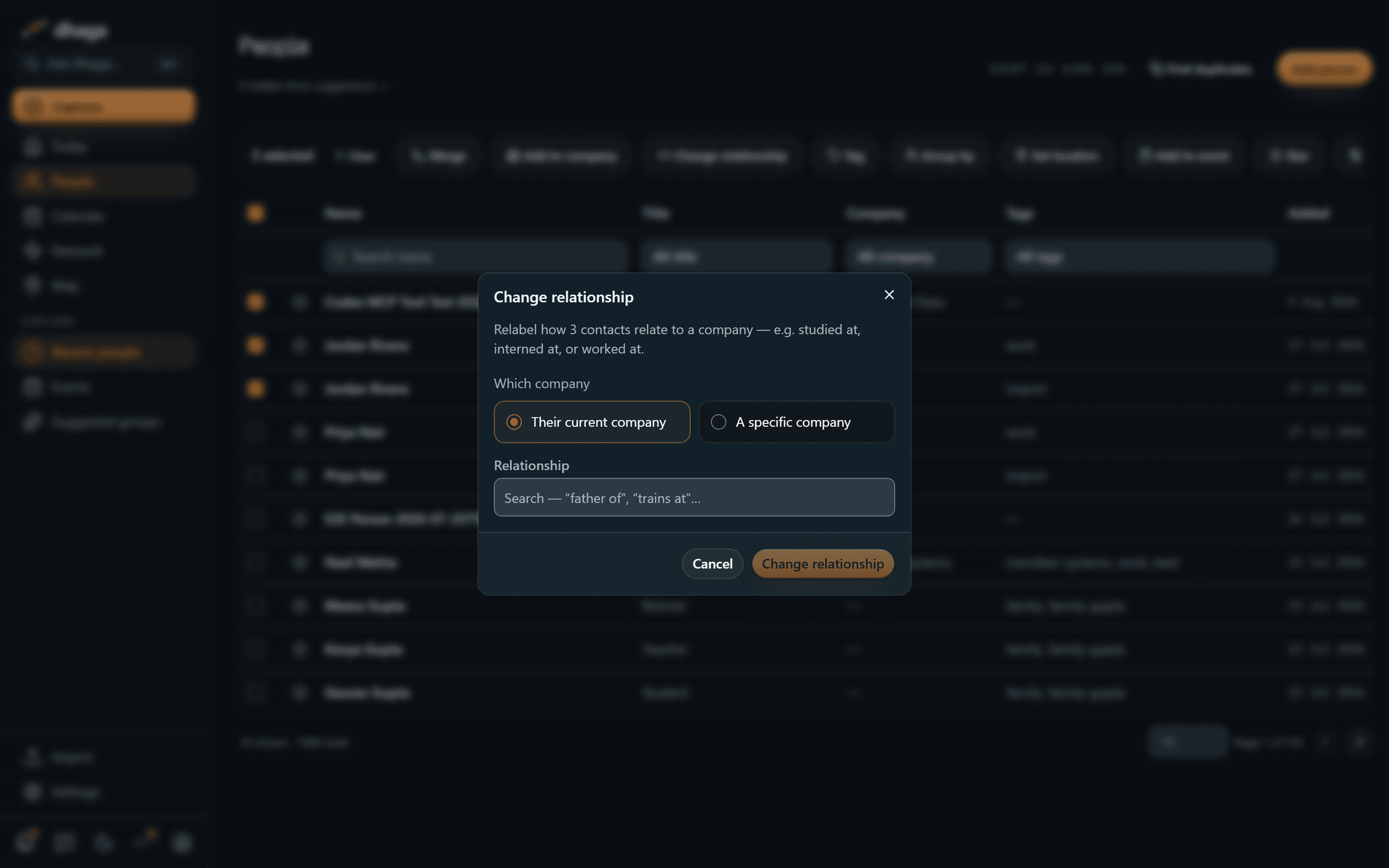
Change relationship — relabel how the selected people relate to a company — studied at, worked at, interned at, board member of, and so on. Only the label changes; nobody moves companies. See Relabel relationships in bulk below.
-
Tag — add or remove a tag across the whole selection.
-
Group by — give the selection one shared tag, company or location from a single dialog, whichever of the three you want this time.
-
Set location — where the selected people are based.
-
Add to event — record that you met them all at the same gathering. Type to find the event by its name or its city, or type a name you don't have yet and it is created — or reused, if an event of that name already exists. When it lands it tells you what it did: Added 4 people to "Design Week" · 2 already there, or No change — all 6 people were already at "Design Week", rather than a success message covering both cases. See Groups & events.
-
Star / Unstar — flag or unflag people for your Saved list.
-
Not a person / Is a person — settle in one go whether the selection is people or address-book clutter ("Ola Support", "Vegetable Vendor"). Marking a row Not a person keeps it off suggestions only; it stays listed in People, in search and in every export, and nothing is deleted. Your ruling sticks — Dhaga's nightly check never overrides it. See your daily briefing for what suppression does and doesn't touch.
-
Copy to organization… — copy the selection into an organization you belong to, leaving your own records untouched. Shown only in your personal workspace when you are in at least one organization. See Copy many at once for the full walkthrough: where the button is, what the dialog asks, and what happens when you copy someone a second time (they are updated, not duplicated).
-
Delete — forget the selected people. This cascades — their notes, facts, edges, and embeddings go too — exactly like "forget this person" on a single profile.
Relabel relationships in bulk
Phone and address-book imports often land everyone at a place as "works at" — including the classmates you studied with and the professors who taught you. Change relationship fixes a whole batch in one pass:
- Select the people and click Change relationship.
- Choose which company the label applies to — their current company (each person's own), or a specific company you pick.
- Choose the new relationship — studied at, worked at, interned at, board member of, and so on, or create your own type.
- Apply.
Only the affiliation label changes — nobody is moved to a different company. So students relabelled to "studied at" and the professors left as "works at" still cluster on the same university node in your graph.
Merge duplicate contacts
Met the same person twice — a card scan and a LinkedIn import, say — and now they're two records? Merge folds them into one:
- Select the records and click Merge (or start from Find duplicates, below).
- Pick the survivor — the record everything else folds into.
- Resolve conflicts. Where records disagree on a single-value field — name, nickname, or location — you choose which value wins. Fields where they already agree don't ask.
- Everything that can hold more than one value is combined onto the survivor: emails, phones, links, addresses, important dates, custom fields, tags, jobs, notes, facts, and relationship edges. Nothing is dropped.
The other records are then permanently deleted. It all happens in a single step — either the whole merge lands or nothing changes.
Merging can't be undone
The records you merge away are hard-deleted, with no undo — the same model as "forget this person." Their data lives on in the survivor, but the separate records are gone. Make sure you've picked the right survivor first.
Find duplicates
You don't have to spot duplicates yourself. The Find duplicates link in the
People page header opens /app/people/duplicates, which groups likely
duplicates it notices — by a shared email, a shared phone, or the
same name — into clusters.
Each signal gets its own collapsible section, strongest first, and the first one starts open. Long lists are paged rather than dumped on the screen: a section shows ten groups at a time, a group shows six people at a time, and a Show more button reveals the rest. One more section sits at the bottom, collapsed and counted in sets — Dismissed, the sets you've told Dhaga aren't duplicates. See Not a duplicate below.
You choose who actually gets merged. Every person in a group has a checkbox, and the button reads Merge selected — it stays disabled until you've ticked at least two. What's ticked by default depends on how strong the match is:
- Same email and same phone are exact matches, so everyone in the group starts ticked — untick anyone who doesn't belong.
- Same name starts with nothing ticked. Two people really can share a name, so Dhaga won't assume. If it offers you five Amit Singhs and only three are the same person, tick those three and merge them; the other two are left exactly as they were — and if that pair keeps coming back, you can tell Dhaga they aren't duplicates at all.
A shared surname is not a duplicate
Name matching compares the whole name, not the family name — so everyone you know surnamed Singh is not offered up as one person. (Dhaga does notice shared surnames, but that's a different feature: it suggests them as tags when you import contacts.)
Two people can still genuinely share a whole name, though, and no rule will ever catch that. That's what Not a duplicate is for.

Not a duplicate
Next to the merge button, every group carries Not a duplicate. Press it and the group drops off the list, with a toast confirming it: Not a duplicate. Dhaga won't offer this set again.
Nothing is deleted and nothing is edited. The people are untouched — still in People, still in search, still in every export. The only thing that changes is that Dhaga stops offering them to you as one person.
Your answer is keyed on the exact set of people in that group — not on the name, email, or phone that gathered them. So if a contact you add later matches that same name, it's a different set, and Dhaga will offer the group again. That's deliberate: an answer you gave six months ago should never quietly hide a duplicate that's genuinely new.
You can change your mind two ways. The toast carries Undo, for the moment you press the wrong button. And the collapsed Dismissed section at the bottom of the page lists every set you've suppressed, each with Restore to put it back in the list above — Back in the list. Restoring a set doesn't merge anything; it just puts the question in front of you again.
Companies have the same tools — view, merge, dedupe, and dismiss them on the Companies page.
Syncing with your phone
Keep your phone's address book and Dhaga in step both ways, with a three-way merge that never silently overwrites — and notes kept off synced devices.
Notes & facts
Add notes by typing, voice or photo; Dhaga extracts facts with a receipt on each — or add facts by hand, no AI needed. Attach files; deletions cascade.