Exploring the graph and map
Explore warm paths and relationship edges on the graph, then open the real city map to pan, zoom, and see who is connected to each place.
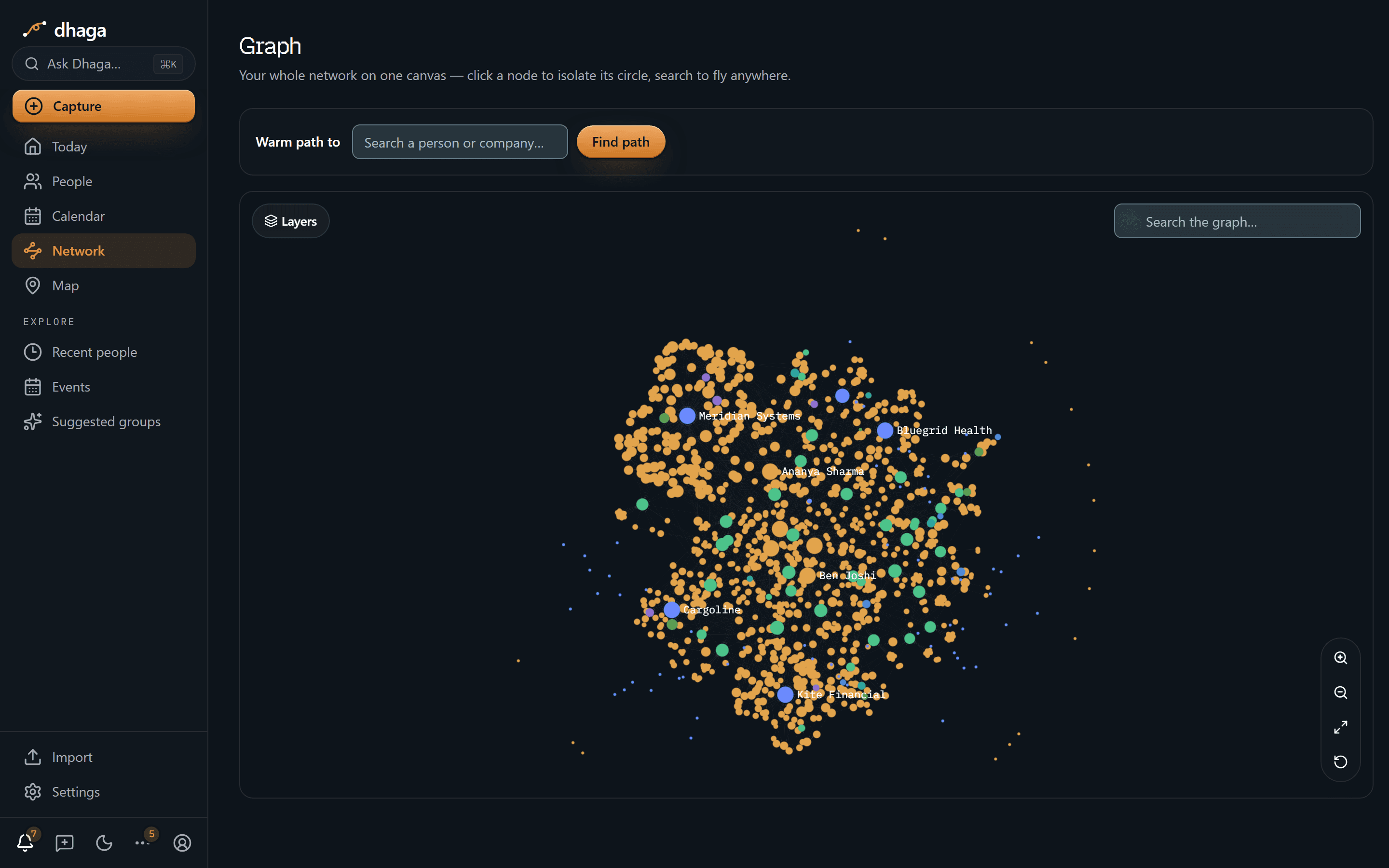
/app/graph renders your entire network on a single canvas. Every person
and connection you've captured is one node in a graph you can pan, zoom, and
interrogate.
Find a warm path
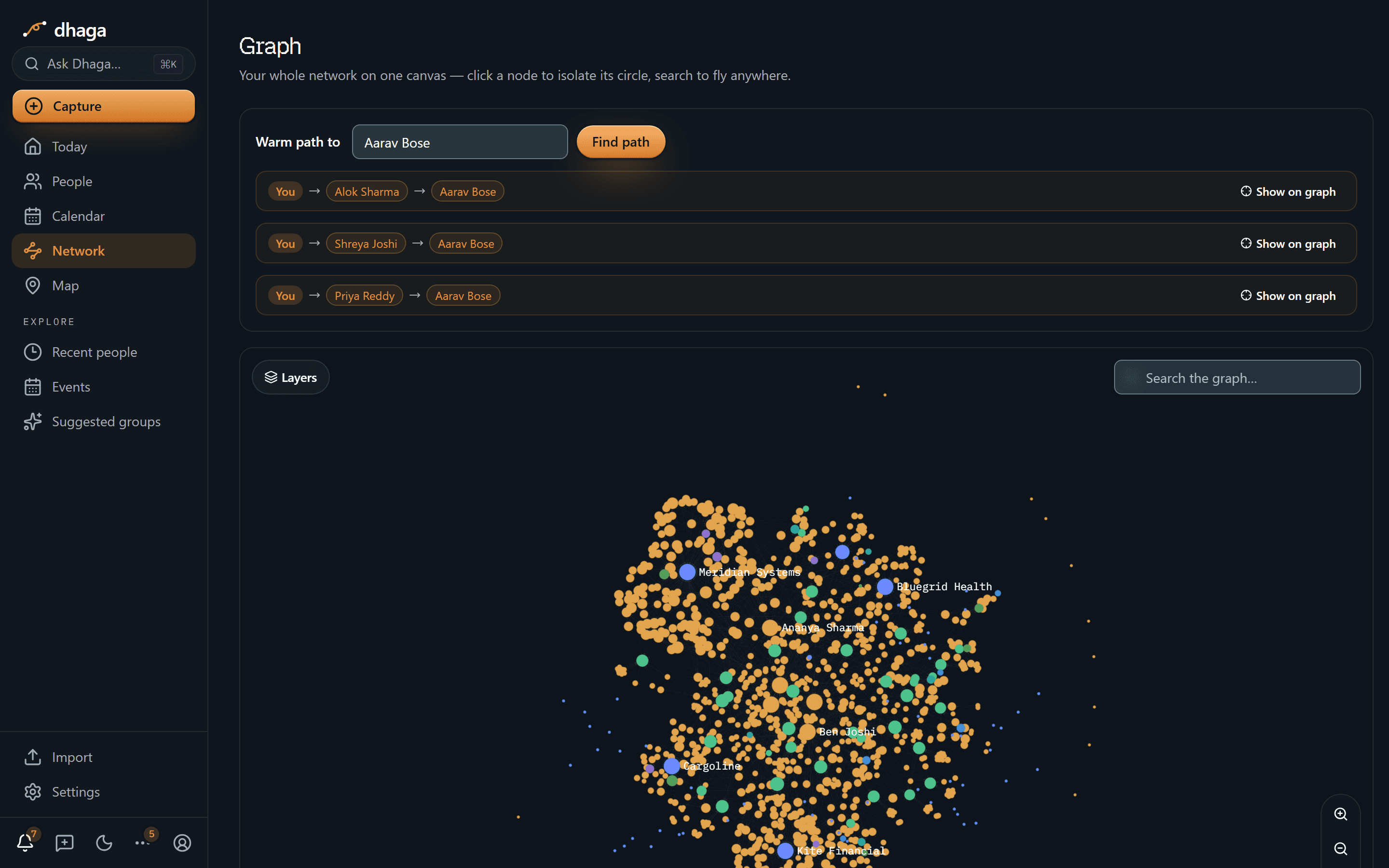
The Warm path finder answers "how do I get introduced to this person?" Enter a target and Dhaga renders the intro chains that connect you to them through people you both know — for example You → Bhavna Costa → Aarav Bose.
Inspect a node
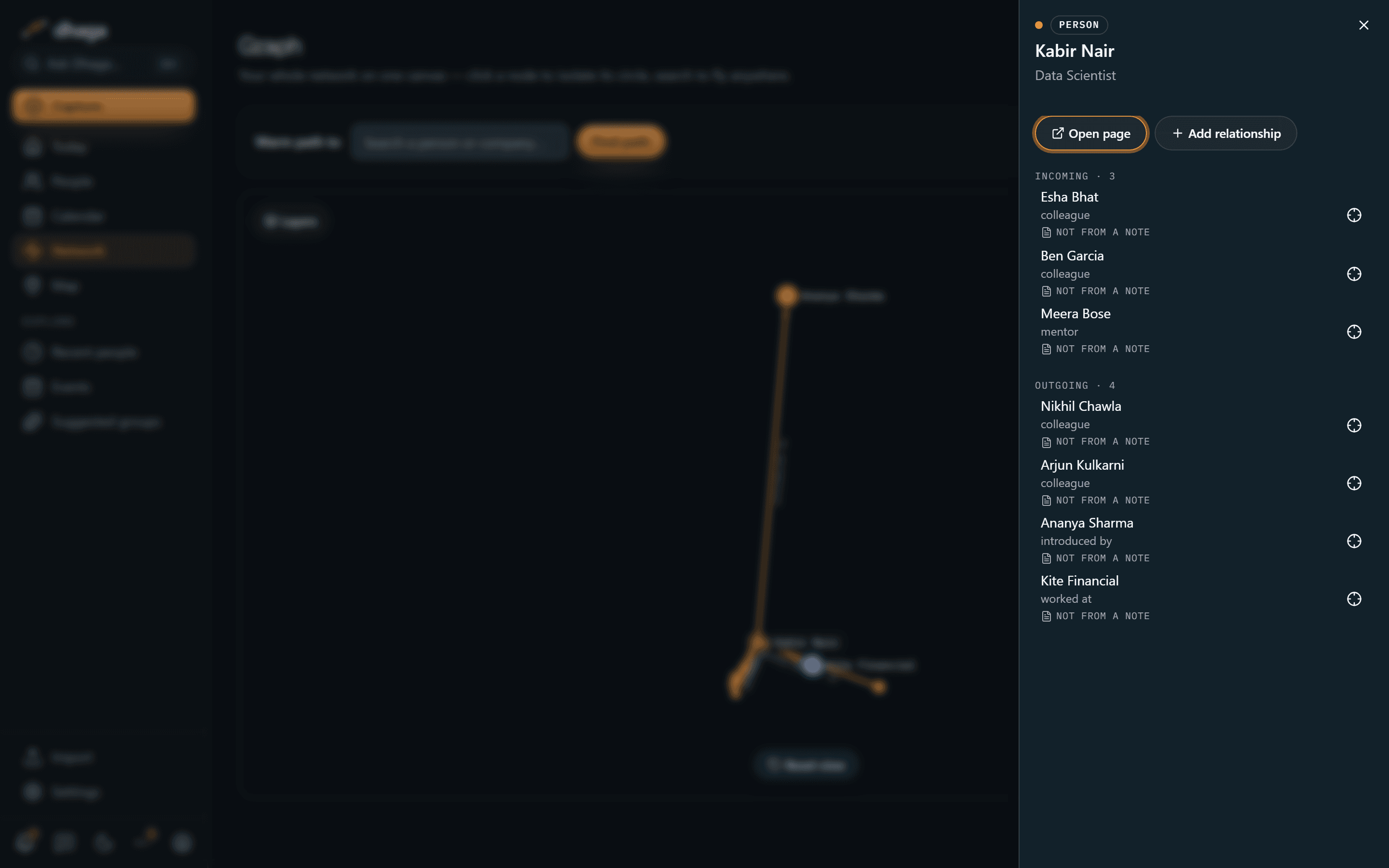
Click any node to open its side panel. It shows that person's edges — split into incoming and outgoing — and lets you:
- Add a relationship to another person — search your graph, or add a new person on the spot if they aren't in it yet.
- Open their full profile page.
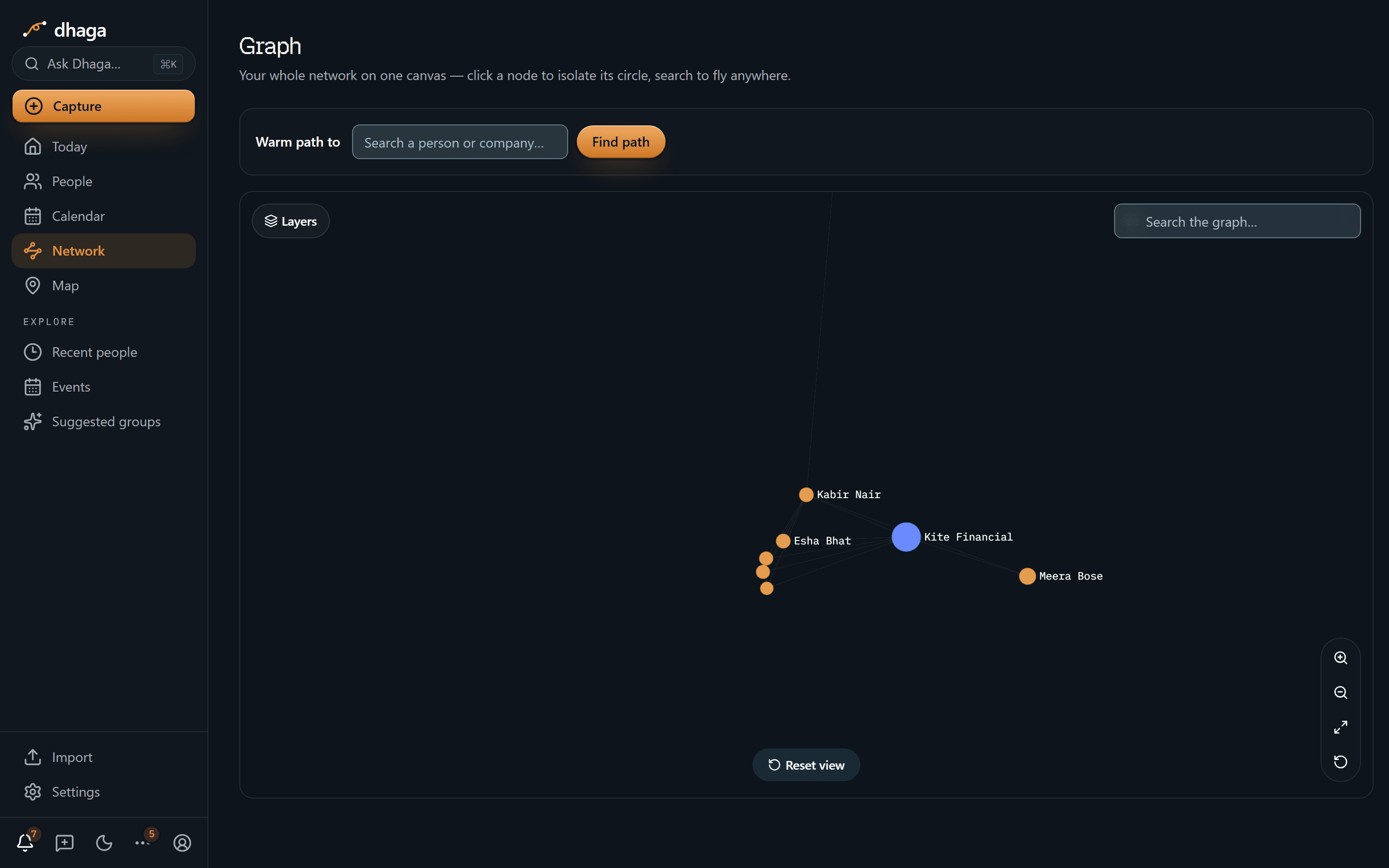
- Isolate their circle to focus on just their immediate connections.
The canvas behind the panel stays sharp and stays live — pan, zoom, and hover edges with the panel still open, which is the point of toggles like Collapse group and Show circle on canvas: you watch the graph redraw as you flip them. Close the panel with its ✕ or the Escape key.
Reading the edges
Edges are directional, and hovering a node makes the direction obvious: its outgoing edges — the ones where it's the subject — thicken into solid amber with a clear arrowhead, while edges merely pointing at it stay softer and thinner. So Rohan → parent of → Priya reads at a glance.
Employment and schooling both draw an edge from the person to the organisation:
- A current employer is the person's primary "works at" edge.
- Past employers render as their own "worked at" edges — every role in a person's history shows, not just the current one.
- Education renders as "studied at" (or "attended").
Every edge shows where it came from
Click an edge and its popover carries a From a note control that takes you to the note the relationship was extracted from — the same receipt a fact on a profile has. The node panel's edge list and a contact's Relationships rows carry it too, and an edge nobody extracted says Not from a note instead: hand-drawn and imported edges legitimately have no source, and admitting that is what makes the receipt on every other edge worth believing.
This is the point of the graph rather than a detail of it. A relationship Dhaga worked out for itself is a claim, and a claim you cannot trace is one you cannot check — so if an edge looks wrong, the note that produced it is one click away and you can correct or delete it at the source. Delete that note and what was derived from it goes with it.
Filter the network
Press Filters to narrow the graph to the people you mean — everyone tagged investor you have not spoken to in 90 days, say. Pick options from any of the groups (People, Company, Activity, Source & details); a person must match every group you use, and any one of the options you tick inside a group.
- Each option shows how many people it would leave, and options that would match nobody are dimmed rather than hidden.
- Last interacted and Date added have ready-made ranges (last 7, 30 or 90 days, over 90 days ago) and a custom range; last interacted also has Never.
- Companies, events and tags with nobody left on screen are hidden along with the people, and the count — "12 of 340 people" — tells you how much of the network the filters leave.
- Your filters show as chips above the graph. Remove one with its ×, or use Clear all. They are kept in the page address, so a filtered view can be bookmarked or shared with yourself on another device.
The filter list loads the first time you open it, so it never slows the graph down. The map has the same Filters.
Layers and controls
- The Layers panel toggles which node types and circles are drawn, so you can declutter a dense graph.
- Zoom, fit, and reset controls frame the view — fit to see everything, reset to return to the default layout.
Non-person nodes like gyms or projects show up here too — see Custom entities.
See who is nearby
Open Map from the desktop rail, the phone bottom bar, or by clicking the globe on Home. It shows contacts whose saved locations can be placed on a real, pan-and-zoom MapLibre map. Select a point, one of the quick city chips, or the All cities… picker to frame that city at zoom 11. The selected city stays in the URL so the view can be revisited; continue panning or zooming as needed. A closer camera never means Dhaga knows a street address. Tap the point to open the people grouped at that place.
That list opens beside the map rather than over it: the map stays sharp and draggable underneath, so you can keep exploring the neighbourhood while reading who is there. Closing the list leaves the camera exactly where you left it — only All cities… pulls back out to frame your whole network again.
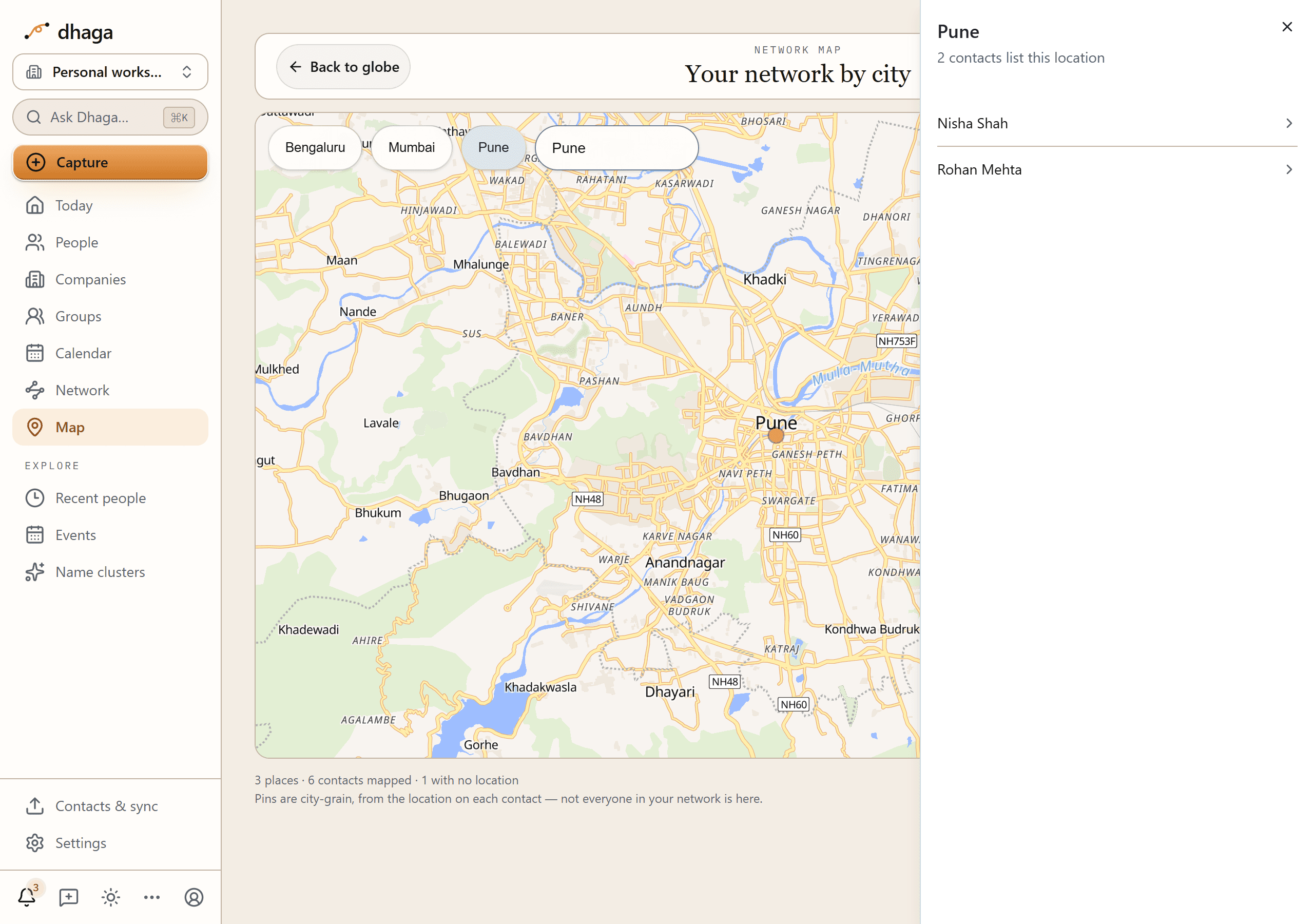
The coverage line below the map separates contacts that are mapped, still being placed, could not be placed, or have no location, so the visible pins never pretend to be your whole network. Could not be placed is a link: open it to see exactly who, and the location text that failed to match, with a link to each contact so you can correct it — a city and country is enough. Dhaga uses only locations already in your graph; there is no live tracking. Its OpenFreeMap/OpenStreetMap attribution stays visible on the canvas because that credit is part of the data licence.
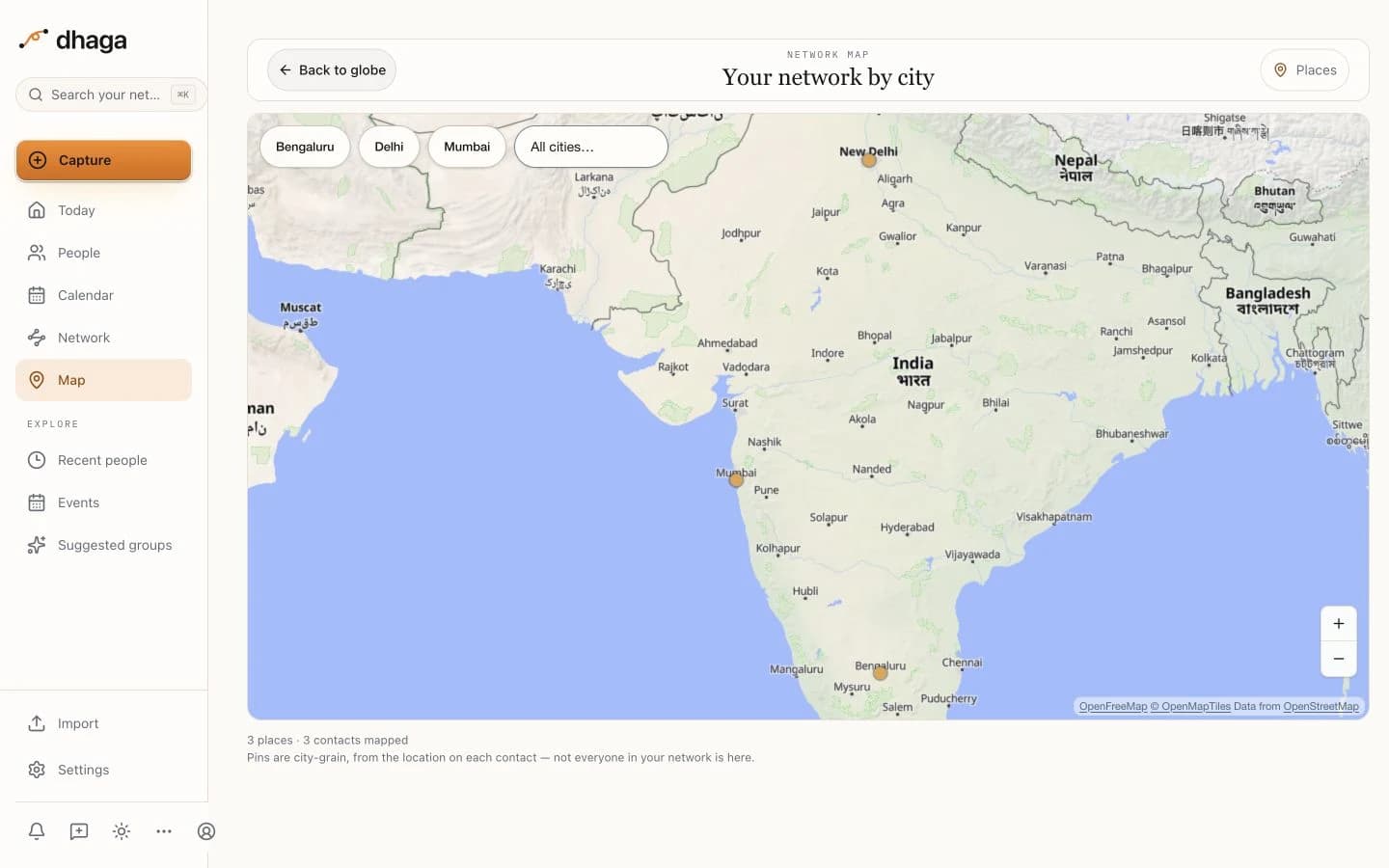
Filter the map
Filters on the map works like the one on the graph: the same groups, the same chips above the canvas, and the same page-address link. Pins with nobody matching disappear, the number on each pin becomes the people who match, and the count — "12 of 340 people on the map" — says how much of the mapped network is left. Opening a pin lists only the people who match — the first 200 by name when there are more, with the true total underneath. If nobody matches you get a Clear filters button rather than a blank map.
Connections, Event attended and Relationship are on the map too, and mean the same thing as on the Network tab. They come from the graph, so the first time you open Filters (or open a link that uses them) the map loads it in the background: those three rows show a placeholder for a moment while every other filter is already usable. A link that carries filters shows "Applying filters…" for a moment instead of flashing everyone first. If something can’t load, the map shows everyone and says so, with Retry and Clear filters. One difference remains: filters only apply to people who are on the map — someone with no location has no place to filter by — so the counts in the panel are of mapped people, and the coverage line’s "still being placed", "could not be placed" and "no location" numbers keep describing your whole network.
Groups & events
Events hold the people you met at one gathering; groups hold those you keep meeting. Build rosters, email a digest, and get group ideas from your calendar.
Search & Ask Dhaga
The ⌘K command palette has two tabs — Search to filter by name, fact, or note, and Ask Dhaga to get a reasoned, receipted answer over your own graph.