Plan — calendar & reminders
Everything you owe and everything booked on one page — Day, Week, Month and List views over follow-ups, Dhaga events and your connected calendars.
/app/plan is the one page for everything you owe and everything that's
booked. A due date is a list row and a calendar chip at the same time, so
Tasks, Calendar and Follow-ups used to ask you which of three pages you wanted —
a question nobody could answer. They're now one board. The old
/app/tasks, /app/calendar and /app/follow-ups addresses still
work: they redirect here, and the nav carries a single Plan entry.
See Tasks & recurring follow-ups for general tasks, recurrence, and keep-in-touch scheduling.
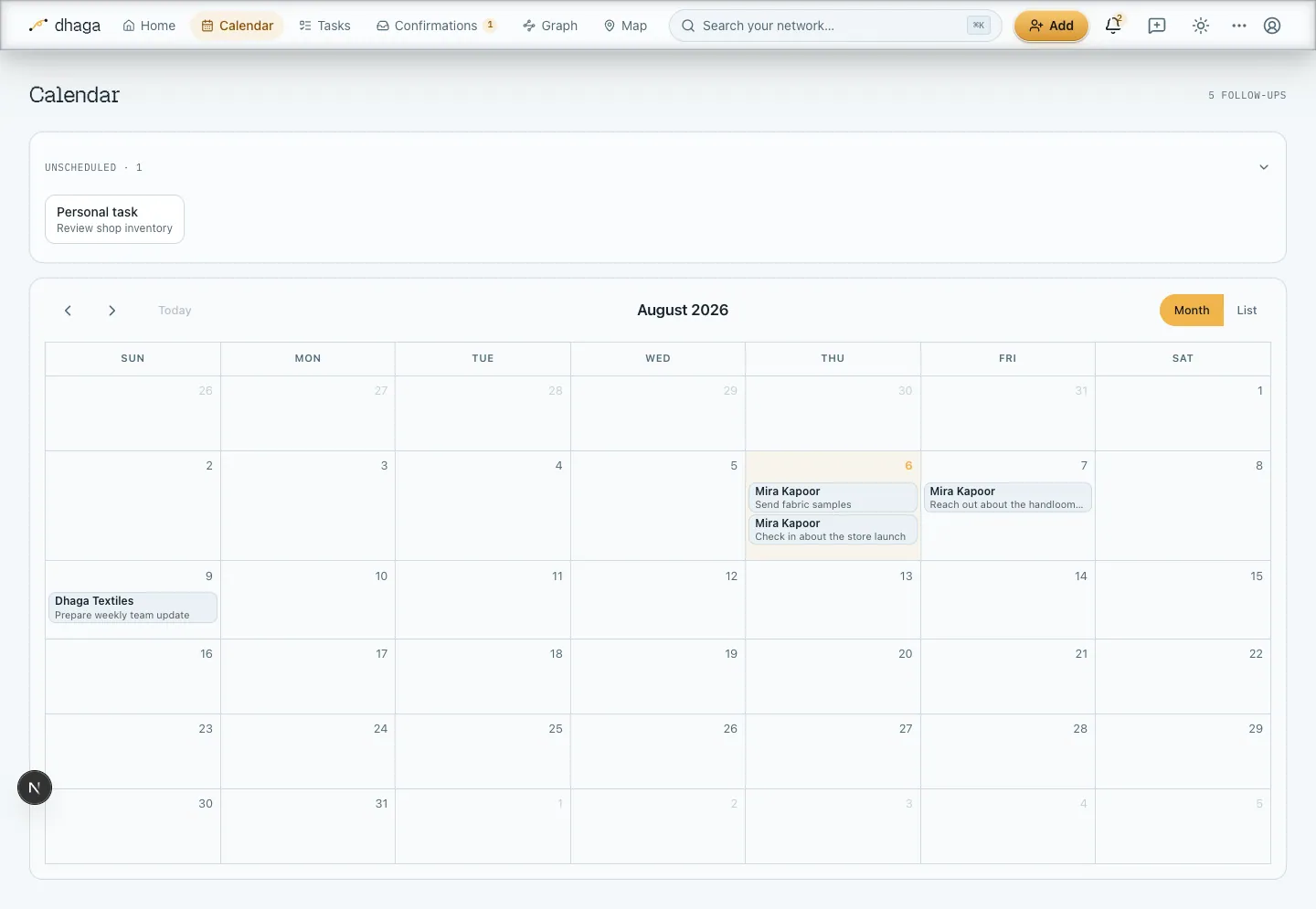
Four views, one toolbar
Pick Day, Week, Month or List from the switcher at the top. Day and Week lay work out against the hours; Month is the grid; List is the task board — the one with a checkbox, an inline due-date picker and an edit form on every row. Plan opens on Week every time, because "when can I fit this?" is the question the board exists to answer — a list opening first reads as a to-do app with a calendar bolted on. The view isn't remembered between visits.
The three calendar views share prev / next / today to move around, and whichever date you've paged to survives a switch between them — go to next month, flip to Week, and you're still in next month.
One toolbar sits above all four, so a count you can see is a count you can trust — see Search and filter below.
While Plan is fetching its data, a stable skeleton keeps the navigation and page layout in place instead of flashing an empty screen.
Reschedule by dragging
On Day, Week or Month, pick up any follow-up and drop it on another day to move its due date. The change saves as soon as you let go — if anything goes wrong it snaps back and tells you. No dialog, no form: just drag it where it belongs. Follow-ups are the only thing that moves this way; everything else on the grid snaps back (see the sections below for why).
The unscheduled tray
Follow-ups you logged without a due date don't disappear — on the three calendar views they gather in an Unscheduled tray above the grid, each as a chip with the contact's name and what you meant to do. Drag a chip onto a day to give it a date; it leaves the tray and takes its place on the grid. Collapse the tray with its header when you want it out of the way.
In List they aren't in a tray at all: every row carries its due date as a button reading Unscheduled, and tapping it opens a date picker in place. If the follow-up came out of a note that said something like "reach out next week", the picker shows you those words, so you can date it without going back to read the note.
Open a follow-up's details
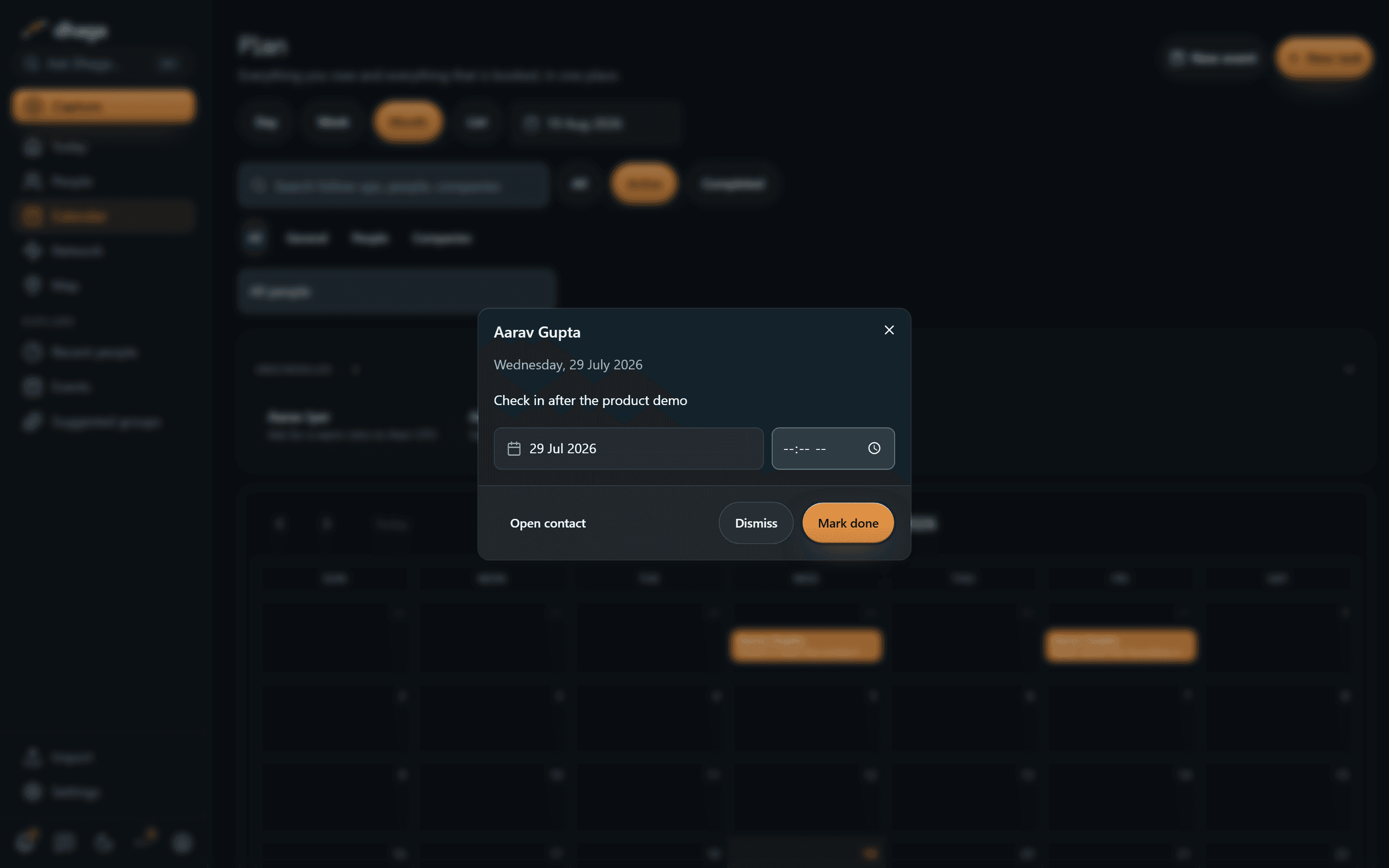
Click any item — on the grid or in the tray — to open its details, including the full text a chip had to truncate. Tray chips are still draggable: a click opens them, a drag schedules them. From the dialog you can:
- Open contact — jump straight to the person's page.
- Mark done — close the follow-up out.
- Dismiss — clear it without marking it done.
A follow-up you've already completed opens read-only — there's nothing left to mark done or dismiss — with Close in place of those buttons.
Work you've already done
Completed follow-ups are hidden by default — the board opens on Active. Set the status filter to All or Completed and they come back onto the grid, struck through and faded, so a month you worked through doesn't look like one you ignored. They're never painted as overdue — done work can't be late — and they can't be dragged or re-completed.
Search and filter
One row of controls sits above every view and trims the grid, the Unscheduled tray and the List together, so a count you can see is a count you can trust:
- Search matches the action text as well as the person's and company's names — type Acme to find its follow-ups even when none of them says "Acme".
- All / Active / Completed is the status filter, and it opens on Active so the first thing you see is what you still owe.
- All / General / People / Companies is the scope split shared with Tasks. General means work attached to nobody — your own admin list.
- All people and All companies narrow to one owner. Each list is built from the follow-ups on screen, so it never offers a name with nothing behind it, and the whole control is absent when there's nothing to choose.
- Sort — by Due date (soonest first, undated last) or Date added, newest or oldest. It appears in List only; the calendar views are already sorted by the calendar.
List also pages rather than scrolling forever — 10 rows at a time by default, and you can raise it at the bottom. Changing a search, a filter or the sort always returns you to the first page.
Nothing here goes back to the server, so filtering is instant. When your filters exclude everything, Dhaga says so rather than showing an empty calendar. Events from a connected calendar, your own Dhaga events and saved birthdays aren't filtered — the controls are about follow-ups.
Dhaga's own calendar
You don't have to connect anything to have a calendar. New event on the Plan header opens a form for an event Dhaga stores itself: a title, all day or a start and end time, and optionally a location, some notes, and a colour from a palette of eight. Click one on the grid to edit or delete it.
Two honest limits:
- They're moved in the dialog, not by dragging. Only follow-ups re-date on a drop; a Dhaga event snaps back and you change its times in the form.
- They don't feed the busy-day advice. Home's open-slot and busy-day tiles, and the daily brief's sense of how full your day is, still come only from a connected calendar's free/busy — adding a Dhaga event doesn't make Dhaga think you're booked.
There's no person or company field on an event; use a follow-up when the work belongs to someone.
Birthdays and anniversaries
Any important date you've saved on a contact — a birthday, a work anniversary, the day you met — shows up here too, on the day it comes round each year. They sit on the grid as soft amber all-day entries reading "Priya — Birthday", with a quieter second line for the age or count where the saved date includes a year.
They behave differently from follow-ups, on purpose:
- They aren't draggable and they can't be marked done. A birthday isn't a task you complete — it's a fact about a person. Drag one and it snaps straight back.
- You edit them on the person. Click one and Dhaga opens the contact; the date lives under More details → Important dates, where a calendar picker (with a year dropdown, so a 1974 birth year is two clicks) sets it. Change it there and the calendar follows.
- They're worked out on the fly, never stored as separate reminders. Fix a date or forget a person and nothing is left behind to clean up.
Dates you imported from Google Contacts or a .vcf sometimes arrive as plain
text — December 9, or a day and month with no year. Dhaga keeps those exactly
as they came and still works out when they next fall; it never quietly rewrites a
date you didn't type.
How far ahead a date counts as "upcoming" is yours to set, under Suggestions in Settings — 7 days by default.
Your connected calendar, alongside
By default a connected calendar tells Dhaga only when you're busy — blocks of time, no titles, no attendees — and Dhaga never writes to it. That stays true unless you say otherwise.
If you upgrade a connection in Settings, two things change for that calendar and nothing else:
-
Its events show up here, next to your follow-ups and styled differently so you can always tell which is which — muted and dashed, against the solid colours of your own Dhaga events. Click one and a read-only panel gives you the title, when, the location if it has one, and which calendar on which account it came from — the only way to tell a work meeting from a personal one on a merged grid. That panel is the end of the trail: there's no "open in Google" link, because Dhaga never receives one. They can't be dragged or edited — change one in the calendar it came from. Only a window around today is fetched (about a month back and two months ahead), so events far in the past or future won't appear.
-
You find out who a meeting is with. Dhaga compares the addresses on an event's guest list against the people you already have, and any it recognises appear on that panel as links straight to their page. The comparison is exact: the same address, or nothing. A guest whose address you don't have on anyone simply isn't mentioned, and matching a name is deliberately not enough — plenty of people share one, and quietly filing a meeting under the wrong person is worse than not filing it at all. Dhaga never adds someone to your people because they turned up on an invitation.
The other side of the same link is on the person: their page grows a Meetings section showing what's coming up with them and when you last met. It only appears once there's something in it.
-
Your follow-ups get written out to a separate calendar Dhaga creates, called Dhaga — so you can hide it, or delete it outright, without touching anything of your own. Reschedule a follow-up and its event moves; mark it done or dismiss it and the event is removed. If a note is deleted or reprocessed, follow-ups that note created—and their written calendar events—are removed too.
If you'd rather your reminders landed in a calendar you already use, Reminders are written to in Settings lets you pick one. That needs a further one-time permission — the upgrade above only ever lets Dhaga touch the calendar it made itself, and reaching your own calendars is a wider grant that Dhaga asks for separately, only if you go looking for it. Until you do, the Dhaga calendar stays the only thing Dhaga can write to — and if you upgraded a connection before the picker existed, nothing about it changed and you don't need to reconnect.
Both are per-connection and per-account: upgrading one account leaves any other connection exactly as it was. You can switch the write-out off on its own, from Settings, and keep the connection.
Which calendars, and what colour
An account is rarely one calendar. Once a connection can read events, Settings lists the calendars inside it — Personal, Work, whatever's shared with you — and each one gets a checkbox and a colour. Untick one and its events leave the grid; pick a colour and everything from that calendar draws in it. Before Dhaga has listed them, it reads your primary calendar only.
An individual event keeps its own colour where it has one — a meeting you tinted red in Google stays red here, ahead of whatever you chose for the calendar it sits on.
Outlook connections are primary-only
Listing the calendars inside an account is built for Google only. An Outlook connection reads its primary calendar and nothing else — there's no per-calendar checkbox, no per-calendar colour, and nothing to choose in the write-target picker, so its follow-ups keep going to the Dhaga calendar.
Event details stay on your screen
Titles and locations from a connected calendar are only ever displayed. Dhaga doesn't store them, doesn't log them, and doesn't send them to an AI model — and it never asks for the guest list at all.
Staying reminded
You don't have to keep the calendar open to stay on top of things:
- The bell in the top nav opens Notifications — one short list holding three things: follow-ups due today or overdue, birthdays and anniversaries coming up, and word that a background job has finished (a note you added has turned into facts, an enrichment has landed). Mark a follow-up done right there, dismiss a notification with its ×, or jump to the full calendar or your follow-ups list. When it's empty, you're all caught up. The count on the bell is deliberately narrow — things to act on now: what's overdue or due today, anything unread, and a date only once it's actually arrived. A birthday next week is in the list without nagging you.
- Plan's side panel holds a Due for a check-in block — everyone whose keep-in-touch rhythm has run out, most overdue first, and where Home's +N more due sends you — then an Upcoming dates block showing who's next and how far off. The same two blocks are tiles on Home. Each is simply absent when there's nothing in it. On a narrow screen the panel is a drawer you open, so the +N more due link lands you on Plan with the panel still closed — open it to see the list.
- Turn on Morning follow-up reminders to get a nudge whenever follow-ups are waiting — it reaches you while there's still time to act, covering anything due in the next few days rather than only what's already late.
- Turn on Birthdays & anniversaries to hear about a saved date before it lands. You'll be told at most twice per occasion: once when it comes into view, once on the day.
Neither is an email of its own. Both are sections of the daily brief — the single message Dhaga sends each day — so switching both on still means one message, and a day with nothing waiting means nothing at all. Flip them on under Suggestions in Settings, where you also choose the hour the brief lands, whether it comes by email or in your linked chat, and your time zone so a day starts and ends where you are.
Separately from the brief, Dhaga sends a short nudge about ten minutes before a meeting on a connected calendar or a follow-up you gave a time of day. A follow-up dated but not timed doesn't get one — it stays with the brief — and neither does an event you created in Dhaga itself, since nudges read a connected calendar. See Reminders & the daily brief for what changes the timing, how to ask for a reminder in chat, and how to snooze one.
Four views of one set of follow-ups
Day, Week, Month and List all read the same follow-ups, and your Home briefing reads them too. Complete something in List and it's gone from the Month grid without a reload. Use whichever fits the moment.
Tasks & recurring follow-ups
Track work with or without a person on Plan's List view, add company context, repeat follow-ups on a cadence, and turn note dates into calendar items.
Reminders & the daily brief
The two messages Dhaga sends you: one daily summary at a time you pick, and a nudge before a meeting or timed follow-up — by email, or chat on Power.